
Looking for help?
-
Getting Started With BAYG CRM
-
AI
-
- Getting Started w/ Conversation AI
- Response Modes
- Training Bots
- Goals, Prompts, & Actions
- Agency Settings & Rebilling
- Conversation AI + Workflows
- Conversation AI Bot - Explained
- Setting Up Conversation AI
- Advanced Settings Overview - Conversation AI
- Primary vs Non-Primary Conversation AI Bots
- How to Use Conversation AI in the Mobile App
- Auto-Pilot Mode
- Auto-Pilot Mode in Conversation AI for Efficient Communication
- Training Your Conversation AI Bot
- Web URLs and Links
- Conversation AI: New Query Detection Flow
- Audit, Review, and Edit Crawled Website Data
- Response Info for your AI message
- AI Action Logging & Filtering in Conversations
- Customize your AI responses using Prompts
- Bot Actions - Add Contact Info
- Bot Goals Feature : Complete Guide
- AI Prompting 101
- Workflow X Conversation AI - Conversation AI Action
- Conversation AI: Live Chat Channel in Workflow Action
- Update Conversation AI Bot and Status - Workflow Action
- Trigger a Workflow within Conversation AI
- Show Remaining Articles (12) Collapse Articles
-
- AI Voice Agents Overview
- Creating Voice AI Agents
- Testing Voice AI Agents
- Inbound Call Flow for Voice AI calls
- Working hours for AI Employee
- Multi-Language Support
- Voice AI Custom Variable Support in Prompt
- Agents Dashboard
- Idle Reminder Timer
- AI Voice Agents Overview
- Creating Voice AI Agents
- Testing Voice AI Agents
- Inbound Call Flow for Voice AI calls
- Working hours for AI Employee
- Voice AI: Multi-Language Support
- Voice AI Custom Variable Support in Prompt
- Voice AI Agents Dashboard
- Twilio Numbers Support
- Test Call Logs visible in Voice AI Dashboard
- Updated Post Call Email Notification Options
- Test Voice AI Agent While Creating the Agent
- Number Pool Support
- Show Remaining Articles (7) Collapse Articles
-
- How to Find Past Records of Content Generated by Content AI
- How to Use Brand Voice in Content AI
- How to generate images for Social Planner using Content AI
- How to fix grammar and spelling, make longer content and improve writing in Social Post?
- How to create Emails using Content AI?
- How to fix grammar and spelling, make longer content and improve writing in Funnels and Website?
- How to create blog post outline with Content AI?
- How to fix grammar and spelling, make longer content and improve writing in Blogs?
- Idle Reminder Timer
- AI Voice Agents Overview
- Creating Voice AI Agents
- Testing Voice AI Agents
- Inbound Call Flow for Voice AI calls
- Working hours for AI Employee
- Voice AI: Multi-Language Support
- Voice AI Custom Variable Support in Prompt
- Voice AI Agents Dashboard
- Twilio Numbers Support
- Test Call Logs visible in Voice AI Dashboard
- Updated Post Call Email Notification Options
- Test Voice AI Agent While Creating the Agent
- Number Pool Support
- Workflow AI Assistant
- AI-Powered Custom Code Generation in Workflows
- Conversation AI Bot - Explained
- Setting Up Conversation AI
- Advanced Settings Overview - Conversation AI
- Primary vs Non-Primary Conversation AI Bots
- How to Use Conversation AI in the Mobile App
- Auto-Pilot Mode
- Auto-Pilot Mode in Conversation AI for Efficient Communication
- Training Your Conversation AI Bot
- Web URLs and Links
- Conversation AI: New Query Detection Flow
- Audit, Review, and Edit Crawled Website Data
- Response Info for your AI message
- AI Action Logging & Filtering in Conversations
- Customize your AI responses using Prompts
- Bot Actions - Add Contact Info
- Bot Goals Feature : Complete Guide
- AI Prompting 101
- Workflow X Conversation AI - Conversation AI Action
- Conversation AI: Live Chat Channel in Workflow Action
- Update Conversation AI Bot and Status - Workflow Action
- Trigger a Workflow within Conversation AI
- How to generate images for Social Planner using Content AI
- How to fix grammar and spelling, make longer content and improve writing in Social Post?
- How to create Emails using Content AI?
- How to fix grammar and spelling, make longer content and improve writing in Funnels and Website?
- How to create blog post outline with Content AI?
- How to fix grammar and spelling, make longer content and improve writing in Blogs?
- Appointment Booking Conversation AI Bot Workflow and Setup
- Appointment Booking Conversation AI Workflow Action
- Show Remaining Articles (31) Collapse Articles
-
Contacts
-
- Adding Files To Contacts using a Custom Field
- Adding Multiple Phone Numbers for a Contact
- Allow Duplicate Contacts (Contact Deduplication Preferences)
- AND/OR Filters
- Contact Profile Picture
- CSV File Format for Importing Contacts and Opportunities
- Do Not Disturb (DND)
- Getting Started With Smart Lists
- How To Delete Contacts
- How to get customer consent or track legal basis to process your lead's or customer's personal data
- How to Group Contacts within an Organization using the 'Company Object' Feature
- How to Manage Multiple Email Addresses for a Contact
- How to Merge Duplicate Contacts
- Recover Deleted Contacts and Reverse Bulk Deletions
- How to export contacts into a CSV?
- Birthdays And How To Sort Contacts By Age
- Contacts and Bulk Actions - FAQs
- Show Remaining Articles (2) Collapse Articles
-
-
Conversations
-
- Unread VS Read - Must Manually Mark as Read
- View & Edit AI Response Info in Conversations
- Overview of Conversation Filters
- How to CC (Carbon Copy) and BCC (Blind Carbon Copy) for email composer
- Contact Engagement score
- Live Chat
- Right Panel & Expandable Sidebar in Conversations
- Activity Cards in Conversations
- Attachments Made Easy in Conversations
- Conversations FAQs
- Conversations - Snippets
- Select SMS To and From Numbers
- Conversations: Adding Internal Comments and Mentioning Users
- Conversations: Group Chat for SMS
- Activity Cards in Conversations
- Internal Chat: Private Team Communication
- Show Remaining Articles (1) Collapse Articles
- Right Panel & Expandable Sidebar in Conversations
- Activity Cards in Conversations
- Attachments Made Easy in Conversations
- Conversations FAQs
- Conversations - Snippets
- Select SMS To and From Numbers
- Conversations: Adding Internal Comments and Mentioning Users
- Conversations: Group Chat for SMS
- Activity Cards in Conversations
- Internal Chat: Private Team Communication
- Unread VS Read - Must Manually Mark as Read
-
-
Workflow
-
- Introduction to Workflows and Automations
- Workflow Notes, Action Notes & Sticky Notes
- Workflows - Advanced Filters & Smart List
- Workflow Action - If/Else Condition
- Workflow - Oauth2 in Custom Webhook
- Execution Logs & Enrolment History Enhancements
- New Discover button - Workflows
- If/Else Workflow Action - Appointment Filter Options
- Workflows Nested Folders
- Workflows Landing Page
- Highlighting & Resolving Errors in a Workflow
- Custom Webhook Action – Secure Credential Management
-
- Create Task Event In Campaigns
- Workflow Trigger - Contact Tag
- Workflow Action - Edit Conversation
- Workflow Action - Update Contact Field
- Workflow Action - Update Contact Field - Date type field
- Workflow Action - Math Operation
- Troubleshooting Workflow Executions - Race Conditions
- How To Attach Files to MMS Using Custom Values
- Workflow Folder Permission
- Workflow Trigger - Order Submitted
- Workflows vs Campaigns/Triggers (Deprecated features)
- Guide to Google Sheets Premium Workflow Action
- Guide to Custom Webhook Workflow Action
- Guide to Slack Workflow Action
- Guide to Date/Time Formatter Workflow Action
- Workflow Trigger - Payment received
- Workflow Settings - Overview
- Workflow Builder Walkthrough
- Workflow Action - If Else New Features
- How to Automatically Assign Users to Leads In Workflows
- Facebook & Instagram comment automation
- How to handle multiple rows in Google Sheets
- Facebook & Instagram comment automation FAQs
- Workflow Action - Custom Code
- Workflow Action - End IVR call
- Getting Started with Workflows
- A List of Workflow Triggers
- A List of Workflow Actions
- GPT-4 in BAYG
- Facebook comments + Workflow AI
- Issue Certificates: Triggers and Actions
- In app call for IVR
- Understanding Workflow Behaviour with SMS and Customer Replies
- How to Restore Deleted Workflow
- How to use Email Template Builder in the Workflow Send Email Action
- Workflow Action - Add Leads under an Affiliate
- Workflow Action - Add Manual Sales For An Affiliate
- Appointment scenarios in Workflow
- Multi Select for Forms, Surveys, Contains Phrase and Exact Match
- History for GPT actions (AI Memory Key)
- Error Notifications in workflows
- Pause Workflows on Certain Dates
- How to fetch product details purchased by customers in workflows
- Workflow Action - Custom Code AI
- Workflow Trigger - Contact Created
- Workflow Trigger - Birthday Reminder
- Workflow Trigger - Contact DND
- Workflow Trigger - Custom Date Remimder
- Workflow Trigger - Birthday Reminder 2
- Workflow Triggers - Note Changed
- Workflow Trigger - Note Added
- Workflow Trigger - Note Changed 2
- Workflow Trigger - Task Added
- Workflow Trigger - Task Reminder
- Workflow Trigger - Trigger Link Clicked
- Workflow Trigger - Contact Engagement Score
- Workflow Trigger - Task Completed
- Workflow Trigger - Form Submitted
- Workflow Trigger - Call Status
- Workflow Trigger - Customer Replied
- Workflow Trigger - Email Events
- Workflow Trigger - Appointment Status
- Workflow Trigger - Customer Booked Appointment
- Workflow Trigger - Stale Opportunities
- Workflow Trigger - Pipeline Stage Changed
- Workflow Trigger - Opportunity status changed
- Workflow Trigger - Order Fulfilled
- Workflow Trigger - Order Form Submission
- Workflow Trigger - Order Placed
- Workflow Trigger - Opportunity Created
- Workflow Trigger - Order Submitted vs Order Form Submission
- Workflow Trigger - Opportunity Changed
- Show Remaining Articles (57) Collapse Articles
-
- Workflow Triggers - Opportunity Created
- Workflow Trigger - Contact Changed
- Workflow Trigger - Contact Tag
- Workflow Trigger - Courses User Login ( Legacy Portal )
- Workflow Trigger - Offer Access Granted
- Workflow Trigger - Offer Access Removed
- Workflow Trigger - Invoice
- Workflow Trigger - Product Access Granted
- Workflow Trigger - Product Access Removed
- Workflow Trigger - Payment Received
- Workflow Trigger - Order Submitted
- Workflow Trigger - Subscription
- Refund Workflow Trigger in BAYG CRM
- Workflow Trigger - Group Access Revoked
- Workflow Trigger - Group access granted
- Workflow Trigger - Product Completed
- Workflow Trigger - Courses New Sign Up
- Workflow Trigger - Instagram Comment(s) On A Post
- Workflow Trigger - Facebook Comment(s) On A Post
- Workflow Trigger - Facebook Lead Form Submitted
- Workflow Trigger - Start IVR Trigger
- Workflow Trigger - Abandoned Checkout
- Workflow Trigger - Estimates
- Workflow Trigger & Action - Grant/Revoke Private Channel Access
- Gamification/ Leaderboard triggers and actions for Community groups
- Trigger - Note Added -> Workflow Trigger - Note Added
- Workflow Trigger - Survey Submitted
- Workflow Trigger - Funnel/Website Page View
- Workflow Trigger - TikTok Form Submit
- Workflow Trigger - LinkedIn Lead Form Submitted
- How to Create A Task Event and Task Reminder in Campaigns
- Workflow Trigger - Video Tracking
- Interactive Voice Response (IVR) Guide - Triggers & Actions
- Show Remaining Articles (18) Collapse Articles
-
- Workflow Action - Create Contact
- Workflow Action - Find Contact
- Workflow Action - Update Contact Field
- Workflow Action - Add Contact Tag
- Workflow Action - Add to Notes
- Workflow Action - Remove Contact Tag
- Workflow Action - Assign User
- Workflow Action - Remove Assigned User
- Workflow Action - DND Contact
- Workflow Action - Copy Contact To Sub Account
- Workflow Action - Assign To User
- Workflow Action - Go To
- Workflow Action - GPT History
- Workflow Actions - Delete Contact
- Workflow Actions - Modify Contact Engagement Score
- Workflow Actions - Add Contact Follower
- Workflow Actions - Remove Contact Follower
- Workflow Action - Add Leads Under an Affiliate
- Workflow Action - Add Manual Sales For An Affiliate
- Workflow Actions - Log External Call
- Workflow Action - Generate One Time Booking Link
- Workflow Action - Send Invoice
- Workflow Action - Send Email
- Workflow Action - Send SMS
- Workflow Action - Internal Notification
- Workflow Action - Edit Conversation
- Workflow Action - Slack Message
- Workflow Action - Call
- Workflow Action - Voicemail
- Workflow Action - Manual SMS
- Workflow Action - GMB
- Workflow Action - Review Request
- Workflow Action - Drip
- Workflow Action - Task Notification
- Workflow Action - Manual Call
- Workflow Action - WhatsApp
- Workflow Action - Reply In Comments
- Workflow Action - Facebook Interactive Messenger
- Workflow Action - Instagram Interactive Messenger
- Workflow Action - Update Custom Values
- Workflow Action - Wait
- Workflow Action - If/Else
- Workflow Action - Remove from Workflow
- Action - Add to Workflow -> Workflow Action - Add to Workflow
- Workflow Action - Set Event Start Date
- Workflow Action - If/Else
- Workflow Action - Array Functions (Premium)
- Workflow Action - Split
- Conversation AI: Multiple Messages in One Workflow Action
- Workflow Action - GPT Powered by OpenAI
- Workflow Action - Appointment Booking Conversation AI Booking Bot
- Workflow Action - Update Appointment Status
- Workflow Action - Create/Update Opportunity
- Workflow Action - Remove Opportunity
- Workflow Action - Find Opportunity
- Workflow Action - Create Opportunity
- Workflow Action - Update Opportunity
- Workflow Action - Add Owner to Opportunity
- Workflow Action - Remove Owner from Opportunity
- Workflow Action - Add Follower(s) to Opportunity
- Workflow Action - Remove Followers from Opportunity
- Workflow Action - Stripe One Time Charge
- Workflow Action - Stripe One Time Charge
- Workflow Action - Send Estimate
- Workflow Trigger - Order Submitted
- Workflow Action - Add To Affiliate Manager
- Workflow Action - Add To Affiliate Campaign
- Action - Update Affiliate -> Workflow Action - Update Affiliate
- Workflow Action - Remove From Affiliate Campaign
- Workflow Action - IVR Say/Play
- Workflow Action - IVR Gather Input On Call
- Workflow Action - IVR Connect Call
- Workflow Action - IVR End Call
- Workflow Action - Record Voicemail
- Workflow Action - Course Grant Offer
- Workflow Action - Course Revoke Offer
- Workflow Action - Messenger
- Workflow Action - Instagram DM
- Workflow Action - Google Sheets
- Workflow Action - Custom Code
- Workflow Action - Add To Google Analytics
- Workflow Action - Add To Google Ads
- Workflow Action - Webhook (Outbound)
- Workflow Action - Custom webhook
- Workflow Action - Math Operation
- Workflow Action - Event Start Date
- Workflow Action - Text Formatter
- Workflow Action - Create an Associated Record for Contact
- Workflow Action - Update an Associated Record for Contact
- Workflow Action - Clear Fields of Associated Record for Contact
- Workflow Action - Send Documents & Contracts
- Workflow Action - Goal Event
- Workflow Action - Dare/Time Formatter
- Workflow Action - Number Formatter
- Conversation AI Post-Appointment Booking Actions
- Show Remaining Articles (80) Collapse Articles
- How to use the Inbound Webhook Workflow Premium Trigger
- Introduction to Workflows and Automations
- Workflow Notes, Action Notes & Sticky Notes
- Workflows - Advanced Filters & Smart List
- Workflow Action - If/Else Condition
- Workflow - Oauth2 in Custom Webhook
- Execution Logs & Enrolment History Enhancements
- New Discover button - Workflows
- If/Else Workflow Action - Appointment Filter Options
- Workflows Nested Folders
- Workflows Landing Page
- Highlighting & Resolving Errors in a Workflow
- Custom Webhook Action – Secure Credential Management
- Create Task Event In Campaigns
- Workflow Trigger - Contact Tag
- Workflow Action - Edit Conversation
- Workflow Action - Update Contact Field
- Workflow Action - Update Contact Field - Date type field
- Workflow Action - Math Operation
- Troubleshooting Workflow Executions - Race Conditions
- How To Attach Files to MMS Using Custom Values
- Workflow Folder Permission
- Workflow Trigger - Order Submitted
- Workflows vs Campaigns/Triggers (Deprecated features)
- Guide to Google Sheets Premium Workflow Action
- Guide to Custom Webhook Workflow Action
- Guide to Slack Workflow Action
- Guide to Date/Time Formatter Workflow Action
- Workflow Trigger - Payment received
- Workflow Settings - Overview
- Workflow Builder Walkthrough
- Workflow Action - If Else New Features
- How to Automatically Assign Users to Leads In Workflows
- Facebook & Instagram comment automation
- How to handle multiple rows in Google Sheets
- Facebook & Instagram comment automation FAQs
- Workflow Action - Custom Code
- Workflow Action - End IVR call
- Getting Started with Workflows
- A List of Workflow Triggers
- A List of Workflow Actions
- GPT-4 in BAYG
- Facebook comments + Workflow AI
- Issue Certificates: Triggers and Actions
- In app call for IVR
- Understanding Workflow Behaviour with SMS and Customer Replies
- How to Restore Deleted Workflow
- How to use Email Template Builder in the Workflow Send Email Action
- Workflow Action - Add Leads under an Affiliate
- Workflow Action - Add Manual Sales For An Affiliate
- Appointment scenarios in Workflow
- Multi Select for Forms, Surveys, Contains Phrase and Exact Match
- History for GPT actions (AI Memory Key)
- Error Notifications in workflows
- Pause Workflows on Certain Dates
- How to fetch product details purchased by customers in workflows
- Workflow Action - Custom Code AI
- Workflow Trigger - Contact Created
- Workflow Trigger - Birthday Reminder
- Workflow Trigger - Contact DND
- Workflow Trigger - Custom Date Remimder
- Workflow Trigger - Birthday Reminder 2
- Workflow Triggers - Note Changed
- Workflow Trigger - Note Added
- Workflow Trigger - Note Changed 2
- Workflow Trigger - Task Added
- Workflow Trigger - Task Reminder
- Workflow Trigger - Trigger Link Clicked
- Workflow Trigger - Contact Engagement Score
- Workflow Trigger - Task Completed
- Workflow Trigger - Form Submitted
- Workflow Trigger - Call Status
- Workflow Trigger - Customer Replied
- Workflow Trigger - Email Events
- Workflow Trigger - Appointment Status
- Workflow Trigger - Customer Booked Appointment
- Workflow Trigger - Stale Opportunities
- Workflow Trigger - Pipeline Stage Changed
- Workflow Trigger - Opportunity status changed
- Workflow Trigger - Order Fulfilled
- Workflow Trigger - Order Form Submission
- Workflow Trigger - Order Placed
- Workflow Trigger - Opportunity Created
- Workflow Trigger - Order Submitted vs Order Form Submission
- Workflow Trigger - Opportunity Changed
- Workflow Trigger - Courses User Login ( Legacy Portal )
- Workflow Trigger - Offer Access Granted
- Workflow Trigger - Offer Access Removed
- Workflow Trigger - Invoice
- Workflow Trigger - Product Access Granted
- Workflow Trigger - Product Access Removed
- Workflow Trigger - Payment Received
- Workflow Trigger - Order Submitted
- Workflow Trigger - Subscription
- Refund Workflow Trigger in BAYG CRM
- Workflow Trigger - Group Access Revoked
- Workflow Trigger - Group access granted
- Workflow Trigger - Product Completed
- Workflow Trigger - Courses New Sign Up
- Workflow Trigger - Instagram Comment(s) On A Post
- Workflow Trigger - Facebook Comment(s) On A Post
- Workflow Trigger - Facebook Lead Form Submitted
- Workflow Trigger - Start IVR Trigger
- Workflow Trigger - Abandoned Checkout
- Workflow Trigger - Estimates
- Workflow Trigger & Action - Grant/Revoke Private Channel Access
- Gamification/ Leaderboard triggers and actions for Community groups
- Trigger - Note Added -> Workflow Trigger - Note Added
- Workflow Trigger - Survey Submitted
- Workflow Trigger - Funnel/Website Page View
- Workflow Trigger - TikTok Form Submit
- Workflow Trigger - LinkedIn Lead Form Submitted
- How to Create A Task Event and Task Reminder in Campaigns
- Workflow Trigger - Video Tracking
- Interactive Voice Response (IVR) Guide - Triggers & Actions
- Workflow Action - Create Contact
- Workflow Action - Find Contact
- Workflow Action - Update Contact Field
- Workflow Action - Add Contact Tag
- Workflow Action - Add to Notes
- Workflow Action - Remove Contact Tag
- Workflow Action - Assign User
- Workflow Action - Remove Assigned User
- Workflow Action - DND Contact
- Workflow Action - Copy Contact To Sub Account
- Workflow Action - Assign To User
- Workflow Action - Go To
- Workflow Action - GPT History
- Workflow Actions - Delete Contact
- Workflow Actions - Modify Contact Engagement Score
- Workflow Actions - Add Contact Follower
- Workflow Actions - Remove Contact Follower
- Workflow Action - Add Leads Under an Affiliate
- Workflow Action - Add Manual Sales For An Affiliate
- Workflow Actions - Log External Call
- Workflow Action - Generate One Time Booking Link
- Workflow Action - Send Invoice
- Workflow Action - Send Email
- Workflow Action - Send SMS
- Workflow Action - Internal Notification
- Workflow Action - Edit Conversation
- Workflow Action - Slack Message
- Workflow Action - Call
- Workflow Action - Voicemail
- Workflow Action - Manual SMS
- Workflow Action - GMB
- Workflow Action - Review Request
- Workflow Action - Drip
- Workflow Action - Task Notification
- Workflow Action - Manual Call
- Workflow Action - WhatsApp
- Workflow Action - Reply In Comments
- Workflow Action - Facebook Interactive Messenger
- Workflow Action - Instagram Interactive Messenger
- Workflow Action - Update Custom Values
- Workflow Action - Wait
- Workflow Action - If/Else
- Workflow Action - Remove from Workflow
- Action - Add to Workflow -> Workflow Action - Add to Workflow
- Workflow Action - Set Event Start Date
- Workflow Action - If/Else
- Workflow Action - Array Functions (Premium)
- Workflow Action - Split
- Conversation AI: Multiple Messages in One Workflow Action
- Workflow Action - GPT Powered by OpenAI
- Workflow Action - Appointment Booking Conversation AI Booking Bot
- Workflow Action - Update Appointment Status
- Workflow Action - Create/Update Opportunity
- Workflow Action - Remove Opportunity
- Workflow Action - Find Opportunity
- Workflow Action - Create Opportunity
- Workflow Action - Update Opportunity
- Workflow Action - Add Owner to Opportunity
- Workflow Action - Remove Owner from Opportunity
- Workflow Action - Add Follower(s) to Opportunity
- Workflow Action - Remove Followers from Opportunity
- Workflow Action - Stripe One Time Charge
- Workflow Action - Stripe One Time Charge
- Workflow Action - Send Estimate
- Workflow Trigger - Order Submitted
- Workflow Action - Add To Affiliate Manager
- Workflow Action - Add To Affiliate Campaign
- Action - Update Affiliate -> Workflow Action - Update Affiliate
- Workflow Action - Remove From Affiliate Campaign
- Workflow Action - IVR Say/Play
- Workflow Action - IVR Gather Input On Call
- Workflow Action - IVR Connect Call
- Workflow Action - IVR End Call
- Workflow Action - Record Voicemail
- Workflow Action - Course Grant Offer
- Workflow Action - Course Revoke Offer
- Workflow Action - Messenger
- Workflow Action - Instagram DM
- Workflow Action - Google Sheets
- Workflow Action - Custom Code
- Workflow Action - Add To Google Analytics
- Workflow Action - Add To Google Ads
- Workflow Action - Webhook (Outbound)
- Workflow Action - Custom webhook
- Workflow Action - Math Operation
- Workflow Action - Event Start Date
- Workflow Action - Text Formatter
- Workflow Action - Create an Associated Record for Contact
- Workflow Action - Update an Associated Record for Contact
- Workflow Action - Clear Fields of Associated Record for Contact
- Workflow Action - Send Documents & Contracts
- Workflow Action - Goal Event
- Workflow Action - Dare/Time Formatter
- Workflow Action - Number Formatter
- Conversation AI Post-Appointment Booking Actions
- Workflow Recipes - Instagram Comment Automation
- Workflow Recipes - Facebook Comment Automation
- Workflow Recipes - Facebook comments + Workflow AI
- Show Remaining Articles (198) Collapse Articles
-
-
Opportunities & Pipelines
- Understanding Pipelines
- How To Add a Manual Call Action to a Workflow
- How to set up a Manual SMS action
- How to Use Opportunity Notes?
- Understanding Opportunities in BAYG CRM
- Step-by-Step Guide: Creating Pipelines
- Step-by-Step Guide to Creating Opportunities
- Editing Opportunities
- Editing Opportunities Status
- Deleting and Restoring Opportunities & Pipelines
- How to Decouple Owners for Contacts and Opportunities
- Importing Opportunities using a CSV file
- Filtering Opportunities
- Searching for Opportunities
- List View for Opportunities
- How to Decouple Owners for Contacts and Opportunities
- Customize Opportunity Cards in Board View
- Opportunities - FAQs
- Automating Opportunities
- Multiple Opportunities Toggle in Workflows
- Bulk Edit Opportunities
- How to Color-Code Opportunity Pipelines (Smart Tags)
- Show Remaining Articles (7) Collapse Articles
-
Merge Fields & Custom Variables
-
Marketing
-
- @Mention or Tag Profile in Social Planner
- Add Location Tagging to Social Post
- Add Pinterest Pins in Social Planner
- Add Watermark to every image you post on Social Media
- Automatic Social Posts From Any RSS Feed
- Clear LinkedIn Link Preview Cache Using LI Post Inspector
- Connect Instagram Business or Creator to Facebook (allows posting to IG)
- Connect TikTok in Social Planner
- Facebook Publishing Troubleshooting Guide
- Failed Post Error in Social Planner
- Follow up Comment
- Grouping of Social Media Profiles
- How to auto-optimise the images for social scheduling?
- How to connect to your Facebook Page(s)
- Connecting LinkedIn Profile and Business Pages to Social Planner
- How to connect to your Google My Business Location(s)
- How to Create Group Hashtags within the Social Planner
- How to Customize post for each socials?
- How to post PDF's as photos in a LinkedIn carousel post?
- How to post Recurring Social Posts through the Social Planner?
- How to schedule post for your communities from Social Planner?
- How to Use the Instagram Story Post Composer in Social Planner
- Instagram Reels Publishing Guide for the Social Planner
- Email Notification for Failed Post, Account Expired and Post Approval
- Social Planner Content Guidelines - Image, Video, and Text
- Post Approval Flow in Social Planner
- Post Facebook Reel From Social Planner
- Direct posting for Tiktok! Forget Push Notifications
- Schedule your Youtube Shorts and Videos in Social Planner
- Share your Reviews as Posts on social media using Social Planner
- Social Planner - Track Social Performance Using Advance Analytics
- Why can't I see my X (formerly Twitter) account when connecting or scheduling posts?
- Search and Smart Filter View
- Collaborator Posts support for Instagram
- Social Planner - Link Shortener
- Link Shortener (URL Shortener) in Social Planner
- How to Create Facebook Story in Social Planner
- Instagram DM - Workflow Action
- Guide to Quick Replies for Facebook & Instagram
- Show Remaining Articles (24) Collapse Articles
-
- Email Templates vs Email Campaigns
- How to send a Regular Email Campaign (Send Now or Schedule)?
- How-to Send RSS Email Campaign(s)
- How to Schedule Batch Email Campaign(s)?
- Preview And Test Your Email Campaign/Templates
- Different Email Sending/ Delivery Method(s) - Send Now, Schedule, Batch, RSS Schedule
- How to import HTML Email Templates/ Campaigns
- How to change the Content of An Ongoing Email Campaign
- How to Reschedule an Email Campaign (Email Builder)
- Email Statistics
- How to find hidden or broken elements in email?
- RSS Blocks In Email Builder
- RSS Email Body showing HTML tags?
- Video Element in Email Builder
- Using custom fonts in the Email Builder
- How to Import Email template(s) from Mailchimp
- How to edit your Email Format for Mobile
- Hide Email Elements on Mobile View
- How to import Email Template(s) from ActiveCampaign
- Email Builder: Understanding Advance Conditions for Smart Lists and Tags
- How to set up A/B testing for your Email Campaigns
- How to use the Email Builder and its In-line Editor
- Add Product Element in Email Campaign
- How to preview Custom Field in Email Builder?
- A Guide to Email Attribution Settings: How to customize it?
- Understanding ROI Conversion Metrics for Tracking Email Campaigns
- Resend to un-opened : Best Practices and Guide
- Guide to Email Campaign Statistics
- How to Add Google Fonts in Email Templates and Campaigns
- How to save items in email builder for quick access?
- How to add GIFs to your email?
- Guide to click tracking in email campaigns
- Understanding UTM parameters for email campaigns
- Share Email Template across Agencies
- How to Use the Plain Text Editor for Emails
- Guide to Pre-Built Contact Segments
- How to Pause or Cancel a Scheduled Email Campaign
- Workflow Email Actions Included in Statistics
- Border Customization: Color, Radius, and Thickness
- A basic guide of RSS Campaign
- Layout Margins and Text Spacing Controls
- Show Remaining Articles (26) Collapse Articles
-
- How to create a Meta Business Manager and Ad account?
- Overview of Ad Manager Settings
- Connect Facebook with Ad Manager
- Connecting Facebook Business Account to Ad Manager
- Setting a Facebook page as Default for Ad Manager
- Audiences Tab Overview - Ad Manager Settings
- Facebook - Create New Ad Campaign in Ad Manager
- Ad Manager: Campaign budget definition
- Create custom audiences in Ad Manager
- How to create Customer List Custom Audience
- Editing a Published or In-Review Meta Ad Campaigns
- Ad Manager: Clone a campaign
- Statistics of Ad campaigns in Ad Manager
- How to create a Facebook form in Ad Manager
- Carousel ads in Ad Manager
- Ad Manager: Create Ad campaigns using templates
- Create lookalike audiences in Ad Manager
- Ad Manager: Audience controls
- Instagram Ads: Overview
- How to Create a Meta Click to Direct(CTX )Ad for Engagement
- How to create a conversation form in Ad Manager
- How to create a Meta Sales objective campaign for Conversion
- How to send the Conversion data to Ad Manager?
- How to cancel Ad Manager subscription for a sub-account?
- How to send a Meta Conversion API action for Ad Manager?
- Connect Google with Ad Manager
- Create a new Google Search Ad Campaign
- Show Remaining Articles (12) Collapse Articles
-
- How To Build Check-in (Loop) Campaigns
- Improved Email Campaign Flow and Campaign Summary Page
- How to Personalize Your Campaigns with Conditional Elements
- Using the Inline Forms/ Surveys Element in email campaign
- How to analyze workflow campaigns?
- How To Build SMS Opt-In Campaigns
- How to Automate Tagging Based on Email Campaign Interactions
-
- How to Use the "Copy Code" Feature in Countdown Timers
- Help Guide: Redirection links in Countdown Timer
- Countdown Timers - Optional End Time for Dynamic Timer
- Guide: Dynamic Countdown Timer
- How to Create a Recurring Timer?
- How to use Countdown Timers in Funnels?
- Editing a countdown timer
- How to create a fixed countdown timer?
- Sync your countdown timer in email and funnels
- How to use countdown timer in emails?
- Getting started with Countdown Timer
- @Mention or Tag Profile in Social Planner
- Add Location Tagging to Social Post
- Add Pinterest Pins in Social Planner
- Add Watermark to every image you post on Social Media
- Automatic Social Posts From Any RSS Feed
- Clear LinkedIn Link Preview Cache Using LI Post Inspector
- Connect Instagram Business or Creator to Facebook (allows posting to IG)
- Connect TikTok in Social Planner
- Facebook Publishing Troubleshooting Guide
- Failed Post Error in Social Planner
- Follow up Comment
- Grouping of Social Media Profiles
- How to auto-optimise the images for social scheduling?
- How to connect to your Facebook Page(s)
- Connecting LinkedIn Profile and Business Pages to Social Planner
- How to connect to your Google My Business Location(s)
- How to Create Group Hashtags within the Social Planner
- How to Customize post for each socials?
- How to post PDF's as photos in a LinkedIn carousel post?
- How to post Recurring Social Posts through the Social Planner?
- How to schedule post for your communities from Social Planner?
- How to Use the Instagram Story Post Composer in Social Planner
- Instagram Reels Publishing Guide for the Social Planner
- Email Notification for Failed Post, Account Expired and Post Approval
- Social Planner Content Guidelines - Image, Video, and Text
- Post Approval Flow in Social Planner
- Post Facebook Reel From Social Planner
- Direct posting for Tiktok! Forget Push Notifications
- Schedule your Youtube Shorts and Videos in Social Planner
- Share your Reviews as Posts on social media using Social Planner
- Social Planner - Track Social Performance Using Advance Analytics
- Why can't I see my X (formerly Twitter) account when connecting or scheduling posts?
- Search and Smart Filter View
- Collaborator Posts support for Instagram
- Social Planner - Link Shortener
- Link Shortener (URL Shortener) in Social Planner
- How to Create Facebook Story in Social Planner
- Instagram DM - Workflow Action
- Guide to Quick Replies for Facebook & Instagram
- Email Templates vs Email Campaigns
- How to send a Regular Email Campaign (Send Now or Schedule)?
- How-to Send RSS Email Campaign(s)
- How to Schedule Batch Email Campaign(s)?
- Preview And Test Your Email Campaign/Templates
- Different Email Sending/ Delivery Method(s) - Send Now, Schedule, Batch, RSS Schedule
- How to import HTML Email Templates/ Campaigns
- How to change the Content of An Ongoing Email Campaign
- How to Reschedule an Email Campaign (Email Builder)
- Email Statistics
- How to find hidden or broken elements in email?
- RSS Blocks In Email Builder
- RSS Email Body showing HTML tags?
- Video Element in Email Builder
- Using custom fonts in the Email Builder
- How to Import Email template(s) from Mailchimp
- How to edit your Email Format for Mobile
- Hide Email Elements on Mobile View
- How to import Email Template(s) from ActiveCampaign
- Email Builder: Understanding Advance Conditions for Smart Lists and Tags
- How to set up A/B testing for your Email Campaigns
- How to use the Email Builder and its In-line Editor
- Add Product Element in Email Campaign
- How to preview Custom Field in Email Builder?
- A Guide to Email Attribution Settings: How to customize it?
- Understanding ROI Conversion Metrics for Tracking Email Campaigns
- Resend to un-opened : Best Practices and Guide
- Guide to Email Campaign Statistics
- How to Add Google Fonts in Email Templates and Campaigns
- How to save items in email builder for quick access?
- How to add GIFs to your email?
- Guide to click tracking in email campaigns
- Understanding UTM parameters for email campaigns
- Share Email Template across Agencies
- How to Use the Plain Text Editor for Emails
- Guide to Pre-Built Contact Segments
- How to Pause or Cancel a Scheduled Email Campaign
- Workflow Email Actions Included in Statistics
- Border Customization: Color, Radius, and Thickness
- A basic guide of RSS Campaign
- Layout Margins and Text Spacing Controls
- How to create a Meta Business Manager and Ad account?
- Overview of Ad Manager Settings
- Connect Facebook with Ad Manager
- Connecting Facebook Business Account to Ad Manager
- Setting a Facebook page as Default for Ad Manager
- Audiences Tab Overview - Ad Manager Settings
- Facebook - Create New Ad Campaign in Ad Manager
- Ad Manager: Campaign budget definition
- Create custom audiences in Ad Manager
- How to create Customer List Custom Audience
- Editing a Published or In-Review Meta Ad Campaigns
- Ad Manager: Clone a campaign
- Statistics of Ad campaigns in Ad Manager
- How to create a Facebook form in Ad Manager
- Carousel ads in Ad Manager
- Ad Manager: Create Ad campaigns using templates
- Create lookalike audiences in Ad Manager
- Ad Manager: Audience controls
- Instagram Ads: Overview
- How to Create a Meta Click to Direct(CTX )Ad for Engagement
- How to create a conversation form in Ad Manager
- How to create a Meta Sales objective campaign for Conversion
- How to send the Conversion data to Ad Manager?
- How to cancel Ad Manager subscription for a sub-account?
- How to send a Meta Conversion API action for Ad Manager?
- Connect Google with Ad Manager
- Create a new Google Search Ad Campaign
- How To Build Check-in (Loop) Campaigns
- Improved Email Campaign Flow and Campaign Summary Page
- How to Personalize Your Campaigns with Conditional Elements
- Using the Inline Forms/ Surveys Element in email campaign
- How to analyze workflow campaigns?
- How To Build SMS Opt-In Campaigns
- Trigger Links - Overview
- SMS Templates (Snippets) - Overview
- Text Snippets (Templates)
- How to Use the Kajabi Email Template Importer
- How to Create a Brand Board
- How to use Brand Boards in emails?
- How to change default Brand Boards?
- Editing a Design Kit
- How to use Brand Boards in Funnels and Websites?
- Brand Voice in Brand Boards
- How to Use the "Copy Code" Feature in Countdown Timers
- Help Guide: Redirection links in Countdown Timer
- Countdown Timers - Optional End Time for Dynamic Timer
- Guide: Dynamic Countdown Timer
- How to Create a Recurring Timer?
- How to use Countdown Timers in Funnels?
- How to Automate Tagging Based on Email Campaign Interactions
- Editing a countdown timer
- How to create a fixed countdown timer?
- Sync your countdown timer in email and funnels
- How to use countdown timer in emails?
- Getting started with Countdown Timer
- Show Remaining Articles (120) Collapse Articles
-
-
Sites
-
- FAQs, Basic Troubleshooting - Funnels, Websites, Webinars
- Click-To-Call, Click-To-Text, and Click-To-Email Links & Buttons
- Funnel Paths
- How to import a Funnel From ClickFunnels?
- Custom Meta Tags
- How to delay the appearance of elements
- Show Popup on Entering Funnel/Website
- Funnels & Websites | Creating Categories in the Navigation Menu
- Disabling Search Engines from Indexing your Website/Funnel Page using Custom Tag
- Scroll to Elements or Sections in Websites or Funnels
- Why Tracking Code doesn't get copied on copying a page?
- Funnel Statistics
- How to Use Site and Funnel Analytics in BAYG CRM
- Page View Triggers for Funnels and Websites
- How to Change Heading Tags (h1, h2, etc) on Funnels/Websites
- Ultimate Guide to 301 Redirects
- How to authorize card payments using the old funnel builder
- Different Websites/ Funnels versions within the system
- How to authorize card payments in funnels
- How to upgrade a Version 1 funnel to Version 2?
- Converting funnels and websites with the new import feature
- How to fix Error while displaying webpage after a purchase
- Shopping Cart Mode in One and Two-step Order forms (V2 Funnels only)
- Split Testing in Funnels
- How to Create a Customizable 404 Error Page
- Image Slider Element for Engaging Web Design
- Social Media Icons
- Creating Mobile-Responsive Designs Made Easy: Funnel & Website Builder
- Resolution of Figerprint Issue in Order form on Wordpress
- Save, Draft and Publish Funnels and Websites
- Hydration event in custom code in Funnels
- How to Add Dynamic Animations to Text Elements
- How to Use the New Block Editor in Funnels and Websites
- How to Easily Add and Edit Shadows in Your Website Builder
- How to Enhance Your Images in the Funnel and Website Builder with the Image Action Feature
- How to Enhance Your Content with Dynamic Visual Effects
- Sites Overview
- How to Create an Exit-Intent Pop-Up in BAYG CRM
- Sync Your Countdown: Dynamic Timer for Emails & Websites
- Manual Payment Support for Forms & Surveys
- Troubleshooting URL Indexing Issues in Funnels
- Show Remaining Articles (26) Collapse Articles
-
- How to Use the Blog Template Library
- How to Create a Blog?
- Create Blog Posts
- How to add blog search and category navigation?
- How to add Blog Sitemap?
- RSS Feed for Blogs
- Blog and Blog Post Statuses
- How to Update SEO for Blog Post
- How to Add Author(s) to The Blog Builder
- How to Preview Blog Post
- How to schedule a blog post
- How to add 'Table of content' to my blog?
-
- Where Do Form Responses Show Up?
- How to create a contact form in BAYG CRM?
- Sticky Contact in Forms, Surveys, and Calendars
- Themes in Forms/Surveys
- Source Field in Forms and Surveys
- Timezone in Forms and Surveys
- Email Notifications in Forms and Surveys
- Payment in Forms (Including Donations)
- How To Create Automated Email Notifications for Form and Survey Submissions
- How to Use Products in Payment Element in Forms
- Email Validation feature in Forms and Surveys
- How to Use the Enhanced Form Builder Features for Greater Flexibility
- Populate Custom Fields and capture in submission using Custom HTML/Javascript Logic
- How to Use the Spread to Column Option in Forms and Surveys
- How to Use SMS Verification in Forms and Surveys
- How to Quickly Add and Edit Custom Fields in Forms and Survey
- Math Calculations in Forms/Surveys
- Right Sidebar in Form and Survey Builder
- Analytics for Forms and Surveys
- Revamped Forms and Surveys Submissions Page
- Embedding BAYG Forms on Non-BAYG Websites
- How to Use Embedding Options for Forms: Triggers, Layouts, and Deactivation Settings Explained
- How to make my form submissions secure from spammers?
- Forms and Surveys: "Other" Option
- Forms, Surveys & Quizzes: Inline Editing
- Show Remaining Articles (10) Collapse Articles
-
- Getting Started with Chat Widget
- Overview of Chat Widget Customizations
- Chat Widget - Business Office Hours in Live Chat
- Chat Widget - Send your leads to Whatsapp Chat
- How to Install BAYG CRM's Chat Widget
- How To Automatically Add Email Addresses & Phone Numbers From FB Chat Into Contact Record
- Exporting Survey Answers to Google Sheets
- Add BAYG CRM's Chat Widget to Your Wix Website
- Add BAYG CRM's Chat Widget to Your Shopify Website
- Add BAYG CRM's Chat Widget to Your Squarespace Website
- Add BAYG CRM's Chat Widget to Your Duda Website
- Add BAYG CRM's Chat Widget to Your Weebly Website
- How to Add Multiple Chat Widgets to the Same Website
- Adding Custom Fields in the Chat Widget Contact Form
- How to Use the All-in-One Chat Widget
-
- How to set up Root Domain/Subdomain for your Funnels/Websites?
- Stripe Troubleshooting | Why does my funnel product show 'null' in the Stripe Plan dropdown?
- Script not working? - Custom Javascript / HTML Code Validation Error Troubleshooting
- Why does my Domain not show the Edit Button?
- SEO Metadata troubleshooting for BAYG CRM Pages
- Fixed / Parallax Background Image not showing on Mobile Phone, why?
- Funnel Troubleshooting | Sticky Contacts not working on calendar/form in funnels
- Why does my Popup button have a Red Mark? | Disable Popup Option
- FAQs, Basic Troubleshooting - Funnels, Websites, Webinars
- Click-To-Call, Click-To-Text, and Click-To-Email Links & Buttons
- Funnel Paths
- How to import a Funnel From ClickFunnels?
- Custom Meta Tags
- How to delay the appearance of elements
- Show Popup on Entering Funnel/Website
- Funnels & Websites | Creating Categories in the Navigation Menu
- Disabling Search Engines from Indexing your Website/Funnel Page using Custom Tag
- Scroll to Elements or Sections in Websites or Funnels
- Why Tracking Code doesn't get copied on copying a page?
- Funnel Statistics
- How to Use Site and Funnel Analytics in BAYG CRM
- Page View Triggers for Funnels and Websites
- How to Change Heading Tags (h1, h2, etc) on Funnels/Websites
- Ultimate Guide to 301 Redirects
- How to authorize card payments using the old funnel builder
- Different Websites/ Funnels versions within the system
- How to authorize card payments in funnels
- How to upgrade a Version 1 funnel to Version 2?
- Converting funnels and websites with the new import feature
- How to fix Error while displaying webpage after a purchase
- Shopping Cart Mode in One and Two-step Order forms (V2 Funnels only)
- Split Testing in Funnels
- How to Create a Customizable 404 Error Page
- Image Slider Element for Engaging Web Design
- Social Media Icons
- Creating Mobile-Responsive Designs Made Easy: Funnel & Website Builder
- Resolution of Figerprint Issue in Order form on Wordpress
- Save, Draft and Publish Funnels and Websites
- Hydration event in custom code in Funnels
- How to Add Dynamic Animations to Text Elements
- How to Use the New Block Editor in Funnels and Websites
- How to Easily Add and Edit Shadows in Your Website Builder
- How to Enhance Your Images in the Funnel and Website Builder with the Image Action Feature
- How to Enhance Your Content with Dynamic Visual Effects
- Sites Overview
- How to Create an Exit-Intent Pop-Up in BAYG CRM
- How to create a contact form in BAYG CRM?
- Sync Your Countdown: Dynamic Timer for Emails & Websites
- Manual Payment Support for Forms & Surveys
- Troubleshooting URL Indexing Issues in Funnels
- How to Use the Blog Template Library
- How to Create a Blog?
- Create Blog Posts
- How to add blog search and category navigation?
- How to add Blog Sitemap?
- RSS Feed for Blogs
- Blog and Blog Post Statuses
- How to Update SEO for Blog Post
- How to Add Author(s) to The Blog Builder
- How to Preview Blog Post
- How to schedule a blog post
- How to add 'Table of content' to my blog?
- How to Disable SEO Indexing for WordPress Sites
- Where Do Form Responses Show Up?
- Sticky Contact in Forms, Surveys, and Calendars
- Themes in Forms/Surveys
- Source Field in Forms and Surveys
- Timezone in Forms and Surveys
- Email Notifications in Forms and Surveys
- Payment in Forms (Including Donations)
- How To Create Automated Email Notifications for Form and Survey Submissions
- How to Use Products in Payment Element in Forms
- Email Validation feature in Forms and Surveys
- How to Use the Enhanced Form Builder Features for Greater Flexibility
- Populate Custom Fields and capture in submission using Custom HTML/Javascript Logic
- How to Use the Spread to Column Option in Forms and Surveys
- How to Use SMS Verification in Forms and Surveys
- How to Quickly Add and Edit Custom Fields in Forms and Survey
- Math Calculations in Forms/Surveys
- Right Sidebar in Form and Survey Builder
- Analytics for Forms and Surveys
- Revamped Forms and Surveys Submissions Page
- Embedding BAYG Forms on Non-BAYG Websites
- How to Use Embedding Options for Forms: Triggers, Layouts, and Deactivation Settings Explained
- How to make my form submissions secure from spammers?
- Forms and Surveys: "Other" Option
- Forms, Surveys & Quizzes: Inline Editing
- Where Do Survey Answers Show Up
- How to Create a Stylized Survey
- New Footer in Surveys
- Survey Create Contact on Partial Completion
- Payments Integration in Surveys | Collect Payments & Sell Products
- Getting Started with Chat Widget
- Overview of Chat Widget Customizations
- Chat Widget - Business Office Hours in Live Chat
- Chat Widget - Send your leads to Whatsapp Chat
- How to Install BAYG CRM's Chat Widget
- How To Automatically Add Email Addresses & Phone Numbers From FB Chat Into Contact Record
- No Slide Button in Survey
- Exporting Survey Answers to Google Sheets
- Exporting Survey Answers to Google Sheets
- Add BAYG CRM's Chat Widget to Your Wix Website
- Add BAYG CRM's Chat Widget to Your Shopify Website
- Add BAYG CRM's Chat Widget to Your Squarespace Website
- Add BAYG CRM's Chat Widget to Your Duda Website
- Add BAYG CRM's Chat Widget to Your Weebly Website
- How to Add Multiple Chat Widgets to the Same Website
- Adding Custom Fields in the Chat Widget Contact Form
- How to Use the All-in-One Chat Widget
- QR Code Generation and Download Guide
- How to create a QR Code linked with Review Page
- How to create a QR Code linked with Website
- How to set up Root Domain/Subdomain for your Funnels/Websites?
- Stripe Troubleshooting | Why does my funnel product show 'null' in the Stripe Plan dropdown?
- Script not working? - Custom Javascript / HTML Code Validation Error Troubleshooting
- Why does my Domain not show the Edit Button?
- SEO Metadata troubleshooting for BAYG CRM Pages
- Fixed / Parallax Background Image not showing on Mobile Phone, why?
- Funnel Troubleshooting | Sticky Contacts not working on calendar/form in funnels
- Why does my Popup button have a Red Mark? | Disable Popup Option
- How to Link Your Privacy Policy When Collecting Personal Data
- Setting up Whitelabel Domain, API Domain, Email Sending Domain, Sites Domain, Client Portal Domain & more
- XML Sitemaps
- Quiz Builder
- Automate Tasks When a Quiz is Submitted - Workflow Trigger
- How to Assign Categories and Scoring in Quizzes With Dynamic Result Messages - A Complete Guide!
- Quiz Template Library: Create Quizzes Faster with Pre-Built Templates
- Site Audit: Monitor, Analyze, and Optimize Your Website’s Technical SEO
- Content Creation & SEO Assistance!
- SEO Plan Comparison: BAYG vs Ahrefs vs SEMrush (2025)
- Get Started with SEO: A Guide to Boosting Your Search Rankings
- Show Remaining Articles (108) Collapse Articles
-
-
Custom Objects
- Getting Started with Custom Objects
- Creating and Updating Custom Object Records
- Custom Objects - Real Estate Case Study
- Using Custom Objects in Workflow Actions and Triggers
- SmartLists for Custom Objects
- Custom Objects In All Plans + Higher Limit
- Custom Object Audit Logs
- Advanced Filters for Custom Objects
- List View for Custom Objects: Sort, Filter, and Manage Records
- Custom Objects - Unique Fields Support
-
Calendars & Appointments
-
- How To Create Service Calendars
- Photographer - Service Calendar Setup Guide
- Automotive Detailing - Service Calendar Setup Guide
- Yoga Studio - Service Calendar Setup Guide
- MedSpa - Service Calendar Setup Guide
- Barbershops - Service Calendar Setup Guide
- Hair Salon - Service Calendar Setup Guide
- Calendar Availability - Weekly Working Hours & Date-Specific Hours
- Round Robin Calendars: Setup, Distribution & Availability Explained
- Round Robin Calendar Staff Selection
- Managing Team Member Assignments in Round Robin Calendars
- Appointment Distribution Logic for Round Robin Calendars
- Class Booking Calendar Overview
- How to Create a Class Booking Calendar (Seats, Capacity & Availability Explained)
- Collective Bookings Calendar Overview
- Collective Booking Calendar Use Cases
- Creating Collective Booking Calendars
- How to Create Service Menus for Calendars
- Rooms and Equipment
- Creating Rooms in BAYG CRM
- How to Create Equipment
- Adding Custom Forms to Calendars
- Customizing Calendar Colors
- How to Use the Rich Text Editor to Enhance Your Calendar Descriptions
- Show seats per slot for Class booking on the booking widget
- Pre and Post buffers
- Consent checkbox for compliance
- In App Calendar view
- Google Organic Booking
- Calendar Widget Customization
- One Time Link
- View Calendar & Appointments in User Timezone
- Workflow Action for Generating One Time Link
- Partial Payment: Collect Deposit Amount
- Restore Deleted Calendars
- Calendar Widget Reorder
- Multiple Meeting Location Selector in Calendar
- Cancellation & Reschedule Policy (Booking Widget)
- How to Use Service Calendars in the Mobile App
- 'Look Busy' in Calendar Settings
- Recurring Appointments
- Collect Payments with Recurring Appointments (Booking Widget)
- How to Set Up a Personal Booking Calendar with BAYG CRM
- Show Remaining Articles (28) Collapse Articles
-
- Collecting Payments in Calendars
- Adjusting Availability Settings for Individual Calendars
- Setting Up Linked Calendars & Conflict Calendars
- Calendar: Email, In-App, SMS & WhatsApp Appointment Notifications
- Calendar Scheduling Conflicts
- Assigning a Primary Calendar
- Custom URL for Unassigned Calendars
- Configuring Calendar Widget Style (Classic & Neo)
- Configure Recurring Calendar Appointments
- How to Use List View in the BAYG CRM Mobile Calendar
-
- Manually Booking Calendar Appointments
- How to Create & Manage Appointment Notes & Sync them Across Records
- How to Manage Appointments with Appointment List View
- Workflow Action: Book Appointment
- Create Appointment Note - Workflow Action
- View Custom Form Submissions (Appointment Side Drawer)
- View Form Submissions in Appointment Modal
-
- Calendar Integration Disconnection Notifications
- Guide To iCloud Calendar Integration
- Hide Third-Party Calendar Details
- How Calendly Syncs With BAYG CRM Calendars
- How to sync BAYG CRM Calendars With Outlook
- iCloud - How to Integrate iCloud with BAYG CRM Calendars
- Integrate Calendly with BAYG CRM Calendars
- Integrating Google with BAYG CRM Calendars
- Integrating Outlook with BAYG CRM Calendars
- Integrating Zoom with BAYG CRM Calendars
- Microsoft Teams Integration For Calendars
- Reserve with Google Integration - Local Services Ads (LSA)
-
- Google Calendar Writer Access Error
- How to Re-Integrate Google Calendar for a User
- Why Appointment Time Slots Are Missing on Your Calendar
- When {{appointment.start_time}} or any other appointment custom values are not showing up
- Why Google Calendar Integration Breaks
- Troubleshooting Tool for Calendar
- Embedding BAYG CRM Calendars using HTML Code
- User Permissions in Calendars
- Add Guests Features in Calendar Bookings
- How To Create Service Calendars
- Automotive Detailing - Service Calendar Setup Guide
- Yoga Studio - Service Calendar Setup Guide
- Photographer - Service Calendar Setup Guide
- MedSpa - Service Calendar Setup Guide
- Barbershops - Service Calendar Setup Guide
- Hair Salon - Service Calendar Setup Guide
- Calendar Availability - Weekly Working Hours & Date-Specific Hours
- Collecting Payments in Calendars
- Round Robin Calendars: Setup, Distribution & Availability Explained
- Round Robin Calendar Staff Selection
- Managing Team Member Assignments in Round Robin Calendars
- Appointment Distribution Logic for Round Robin Calendars
- Class Booking Calendar Overview
- How to Create a Class Booking Calendar (Seats, Capacity & Availability Explained)
- Collective Bookings Calendar Overview
- Collective Booking Calendar Use Cases
- Creating Collective Booking Calendars
- How to Create Service Menus for Calendars
- Rooms and Equipment
- Creating Rooms in BAYG CRM
- How to Create Equipment
- Adding Custom Forms to Calendars
- Customizing Calendar Colors
- How to Use the Rich Text Editor to Enhance Your Calendar Descriptions
- Show seats per slot for Class booking on the booking widget
- Pre and Post buffers
- Consent checkbox for compliance
- In App Calendar view
- Google Organic Booking
- Calendar Widget Customization
- One Time Link
- View Calendar & Appointments in User Timezone
- Workflow Action for Generating One Time Link
- Partial Payment: Collect Deposit Amount
- Restore Deleted Calendars
- Calendar Widget Reorder
- Multiple Meeting Location Selector in Calendar
- Cancellation & Reschedule Policy (Booking Widget)
- How to Use Service Calendars in the Mobile App
- 'Look Busy' in Calendar Settings
- Recurring Appointments
- Collect Payments with Recurring Appointments (Booking Widget)
- How to Set Up a Personal Booking Calendar with BAYG CRM
- BAYG CRM Group Calendar Overview and Setup Guide
- How to Find Group Calendar ID in BAYG CRM
- Neo Group View Template
- Adding Unassigned Calendars to Groups
- Deactivating Calendar Groups
- Adjusting Availability Settings for Individual Calendars
- Setting Up Linked Calendars & Conflict Calendars
- Calendar: Email, In-App, SMS & WhatsApp Appointment Notifications
- Calendar Scheduling Conflicts
- Assigning a Primary Calendar
- Custom URL for Unassigned Calendars
- Configuring Calendar Widget Style (Classic & Neo)
- Configure Recurring Calendar Appointments
- How to Use List View in the BAYG CRM Mobile Calendar
- How to Create & Manage Appointment Notes & Sync them Across Records
- How to Manage Appointments with Appointment List View
- Workflow Action: Book Appointment
- Create Appointment Note - Workflow Action
- View Custom Form Submissions (Appointment Side Drawer)
- View Form Submissions in Appointment Modal
- Calendar Integration Disconnection Notifications
- Guide To iCloud Calendar Integration
- Hide Third-Party Calendar Details
- How Calendly Syncs With BAYG CRM Calendars
- How to sync BAYG CRM Calendars With Outlook
- iCloud - How to Integrate iCloud with BAYG CRM Calendars
- Integrate Calendly with BAYG CRM Calendars
- Integrating Google with BAYG CRM Calendars
- Integrating Outlook with BAYG CRM Calendars
- Integrating Zoom with BAYG CRM Calendars
- Microsoft Teams Integration For Calendars
- Reserve with Google Integration - Local Services Ads (LSA)
- Google Calendar Writer Access Error
- How to Re-Integrate Google Calendar for a User
- Why Appointment Time Slots Are Missing on Your Calendar
- When {{appointment.start_time}} or any other appointment custom values are not showing up
- Why Google Calendar Integration Breaks
- Troubleshooting Tool for Calendar
- Global Settings in Services
- How to Create Services?
- Configuring Staff in Services
- Disable Contact Timezone - How to Remove Ability to Adjust Timezones When Scheduling
- Can I Show Multiple Calendars Without Using a Calendar Group?
- Show Remaining Articles (75) Collapse Articles
-
Payments
-
- Import Products / Price From Stripe
- Text-To-Pay Links
- How to Create Invoices in BAYG CRM
- How to Create and Manage Recurring Invoices in BAYG CRM
- Auto Payments in Recurring Templates
- Common use cases for Payments and Invoices
- How-to add Taxes Overview
- Using Apple Pay and Google Pay in order forms
- Authorize.net integration for processing payments
- How to set up the NMI integration?
- Customize Email and SMS notifications for invoicing
- How to manage Refunds within BAYG CRM?
- Apple Pay and Google Pay in invoices and Text2Pay links
- How to Manage Sales Receipts for Order Form, Calendar and Invoice payments
- Selling products on order forms with available payment providers
- ACH Debit payment method on invoices
- Tap to Pay
- How to Send Confirmations After a Purchase/Order
- List of countries and bank acquirers available with NMI
- Payment Links
- Manage payment methods displayed with Stripe integration
- How to Use Partial Payment for Invoices
- How to send personalized payment links to multiple contacts?
- How to Set Up Flexible Payment Plans in Invoices
- How to Add Setup Fees to Your Recurring Invoices
- How to Streamline Payments with Automated Invoice Reminders
- How to Add Recurring Products to Your Products List in Documents and Contracts
- How to Implement Direct Checkout in Email Campaigns
- How to add Payment Plans to your Invoices?
- How to Use the Manual Payment Method in Your Ecommerce Store
- How to Use BNPL in Order Forms and Payment Links
- How to Connect and Use Square Payment Processor in BAYG CRM
- How to Enable Editable Quantities in Payment Links
- How to Create and Send Estimates Using in BAYG CRM
- Multiple recipient support on Proposals and Estimates
- Tax Inclusive or Exclusive Pricing
- VAT FAQs
- How to add and manage your customer's cards on file
- What happens in case of a payment failure for a Subscription?
- Custom Values and Partial Quantity Support for Estimates
- Coupon Application on Subscription Products
- How to Manage Stripe Payment Methods inside BAYG CRM
- Using Square as a Payment Provider for POS and Mobile Payments
- Tap to Pay on Square for POS and Mobile Payments
- Show Remaining Articles (29) Collapse Articles
- How to integrate Razorpay within BAYG CRM
- Import Products / Price From Stripe
- Text-To-Pay Links
- How to Create Invoices in BAYG CRM
- How to Create and Manage Recurring Invoices in BAYG CRM
- Auto Payments in Recurring Templates
- Common use cases for Payments and Invoices
- How-to add Taxes Overview
- Using Apple Pay and Google Pay in order forms
- Authorize.net integration for processing payments
- How to set up the NMI integration?
- Customize Email and SMS notifications for invoicing
- How to manage Refunds within BAYG CRM?
- Apple Pay and Google Pay in invoices and Text2Pay links
- How to Manage Sales Receipts for Order Form, Calendar and Invoice payments
- Selling products on order forms with available payment providers
- ACH Debit payment method on invoices
- Tap to Pay
- How to Send Confirmations After a Purchase/Order
- List of countries and bank acquirers available with NMI
- Payment Links
- Manage payment methods displayed with Stripe integration
- How to Use Partial Payment for Invoices
- How to send personalized payment links to multiple contacts?
- How to Set Up Flexible Payment Plans in Invoices
- How to Add Setup Fees to Your Recurring Invoices
- How to Streamline Payments with Automated Invoice Reminders
- How to Add Recurring Products to Your Products List in Documents and Contracts
- How to Implement Direct Checkout in Email Campaigns
- How to add Payment Plans to your Invoices?
- How to Use the Manual Payment Method in Your Ecommerce Store
- How to Use BNPL in Order Forms and Payment Links
- How to Connect and Use Square Payment Processor in BAYG CRM
- How to Enable Editable Quantities in Payment Links
- How to Create and Send Estimates Using in BAYG CRM
- Multiple recipient support on Proposals and Estimates
- Tax Inclusive or Exclusive Pricing
- VAT FAQs
- How to add and manage your customer's cards on file
- What happens in case of a payment failure for a Subscription?
- Custom Values and Partial Quantity Support for Estimates
- Coupon Application on Subscription Products
- How to Manage Stripe Payment Methods inside BAYG CRM
- Using Square as a Payment Provider for POS and Mobile Payments
- Tap to Pay on Square for POS and Mobile Payments
- Invoices
- Bank-Only Transfers for Invoice Payments (SEPA & ACH)
- How to Edit Recurring Invoices
- Setting up QuickBooks Integration
- Editing of Payment Schedules and Partially Paid Invoices
- PDF Generation for Invoices and Receipts
- Import Invoices Using CSV
- Attachments in Estimates and Invoices
- How to Create Subscriptions & Invoices from Contact's Profile
- Payments - What is listed on the Subscriptions page?
- Subscription & Refund trigger for payments
- Subscription Settings - Failed Payment Retries
- Pause and Resume Subscriptions
- How to Bulk Import Products into BAYG CRM
- Adding PayPal Buttons to Payment Elements
- Show Remaining Articles (45) Collapse Articles
-
Print
How to post PDF’s as photos in a LinkedIn carousel post?
Posted
Updated
ByPLYSSO CRM

Social Planner now offers a powerful new feature: users can upload PDF’s and post them as photos in a carousel on LinkedIn. Additionally, users can import PDFs and convert each page into separate images for posting on LinkedIn and other social platforms.
The LinkedIn PDF Carousel has become one of the most popular formats for sharing information, providing a unique way to engage your audience and showcase expertise.
 How to create a LinkedIn Carousel Post/Document Post?
- Navigate to Marketing > Social Planner
- Connect your LinkedIn account (either a page or profile)
- Click “New Post” and use the post composer to create a new LinkedIn carousel or document post
- Select the socials from the dropdown and add your post content
- Click on the file upload icon (located between the image and video upload icons)


6. Upload one or more PDFs for LinkedIn carousel or import photos to post as a PDF on LinkedIn
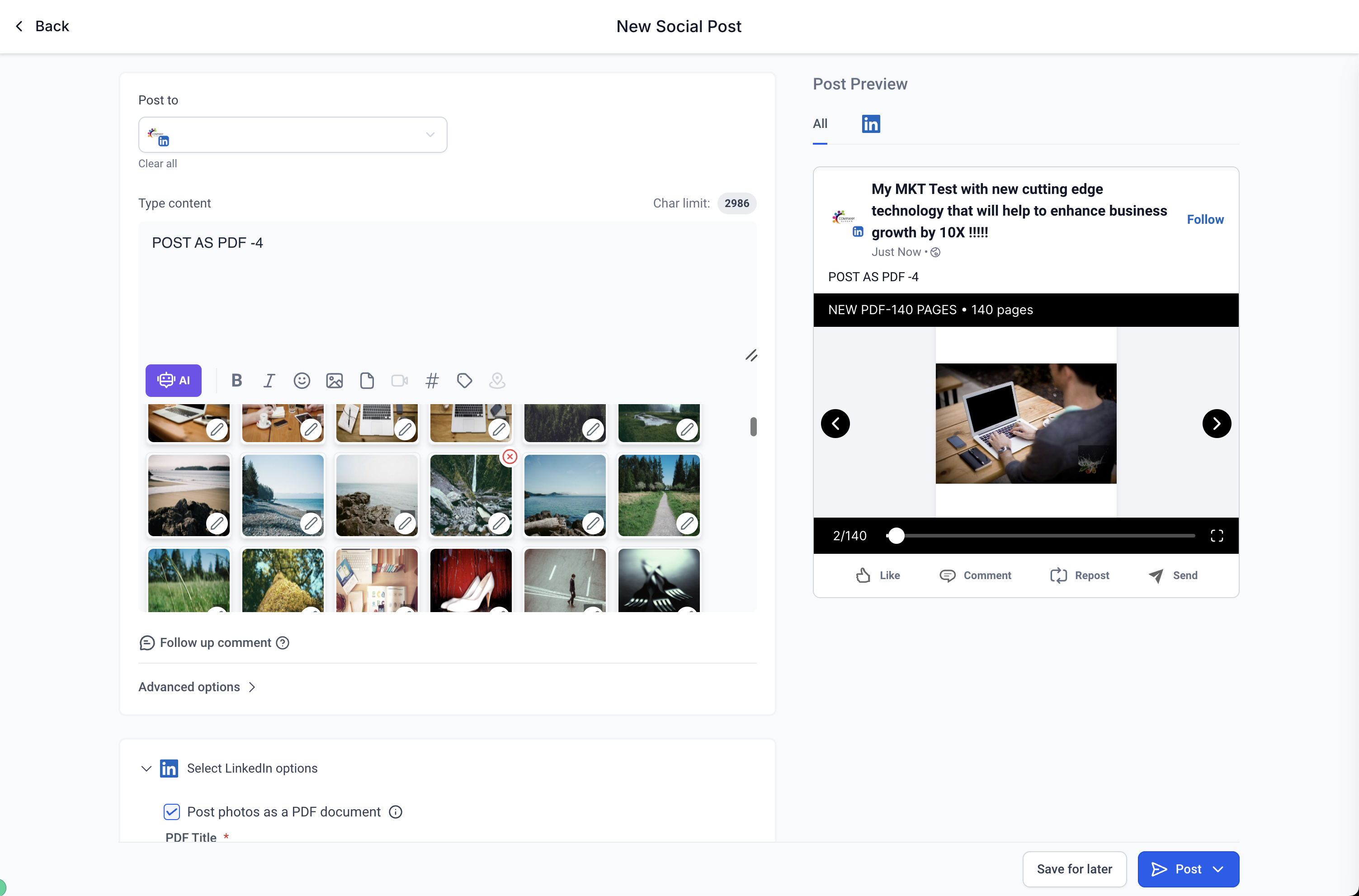
7. You can change the name of the PDF, add a watermark as needed
Constraints to note:
- LinkedIn allows up to 300 pages and a 100 MB limit per document.
- PDFs are converted into images when imported in social planner, and if Instagram is selected, the images are automatically cropped to adhere to Instagram’s aspect ratio constraints.
- Users can now delete media by clicking the ‘X’ that appears when hovering over the media preview.
- When user selects post as a PDF option, all the images are converted into a PDF and posted to LinkedIn.
Hope this information help answer your queries!
Need More Help? Contact Us
Table of Contents
