
-
Getting Started With BAYG CRM
-
AI
-
- Getting Started w/ Conversation AI
- Response Modes
- Training Bots
- Goals, Prompts, & Actions
- Agency Settings & Rebilling
- Conversation AI + Workflows
- Conversation AI Bot - Explained
- Setting Up Conversation AI
- Advanced Settings Overview - Conversation AI
- Primary vs Non-Primary Conversation AI Bots
- How to Use Conversation AI in the Mobile App
- Auto-Pilot Mode
- Auto-Pilot Mode in Conversation AI for Efficient Communication
- Training Your Conversation AI Bot
- Web URLs and Links
- Conversation AI: New Query Detection Flow
- Audit, Review, and Edit Crawled Website Data
- Response Info for your AI message
- AI Action Logging & Filtering in Conversations
- Customize your AI responses using Prompts
- Bot Actions - Add Contact Info
- Bot Goals Feature : Complete Guide
- AI Prompting 101
- Workflow X Conversation AI - Conversation AI Action
- Conversation AI: Live Chat Channel in Workflow Action
- Update Conversation AI Bot and Status - Workflow Action
- Trigger a Workflow within Conversation AI
- Show Remaining Articles (12) Collapse Articles
-
- AI Voice Agents Overview
- Creating Voice AI Agents
- Testing Voice AI Agents
- Inbound Call Flow for Voice AI calls
- Working hours for AI Employee
- Multi-Language Support
- Voice AI Custom Variable Support in Prompt
- Agents Dashboard
- Idle Reminder Timer
- AI Voice Agents Overview
- Creating Voice AI Agents
- Testing Voice AI Agents
- Inbound Call Flow for Voice AI calls
- Working hours for AI Employee
- Voice AI: Multi-Language Support
- Voice AI Custom Variable Support in Prompt
- Voice AI Agents Dashboard
- Twilio Numbers Support
- Test Call Logs visible in Voice AI Dashboard
- Updated Post Call Email Notification Options
- Test Voice AI Agent While Creating the Agent
- Number Pool Support
- Show Remaining Articles (7) Collapse Articles
-
- How to Find Past Records of Content Generated by Content AI
- How to Use Brand Voice in Content AI
- How to generate images for Social Planner using Content AI
- How to fix grammar and spelling, make longer content and improve writing in Social Post?
- How to create Emails using Content AI?
- How to fix grammar and spelling, make longer content and improve writing in Funnels and Website?
- How to create blog post outline with Content AI?
- How to fix grammar and spelling, make longer content and improve writing in Blogs?
- Idle Reminder Timer
- AI Voice Agents Overview
- Creating Voice AI Agents
- Testing Voice AI Agents
- Inbound Call Flow for Voice AI calls
- Working hours for AI Employee
- Voice AI: Multi-Language Support
- Voice AI Custom Variable Support in Prompt
- Voice AI Agents Dashboard
- Twilio Numbers Support
- Test Call Logs visible in Voice AI Dashboard
- Updated Post Call Email Notification Options
- Test Voice AI Agent While Creating the Agent
- Number Pool Support
- Workflow AI Assistant
- AI-Powered Custom Code Generation in Workflows
- Conversation AI Bot - Explained
- Setting Up Conversation AI
- Advanced Settings Overview - Conversation AI
- Primary vs Non-Primary Conversation AI Bots
- How to Use Conversation AI in the Mobile App
- Auto-Pilot Mode
- Auto-Pilot Mode in Conversation AI for Efficient Communication
- Training Your Conversation AI Bot
- Web URLs and Links
- Conversation AI: New Query Detection Flow
- Audit, Review, and Edit Crawled Website Data
- Response Info for your AI message
- AI Action Logging & Filtering in Conversations
- Customize your AI responses using Prompts
- Bot Actions - Add Contact Info
- Bot Goals Feature : Complete Guide
- AI Prompting 101
- Workflow X Conversation AI - Conversation AI Action
- Conversation AI: Live Chat Channel in Workflow Action
- Update Conversation AI Bot and Status - Workflow Action
- Trigger a Workflow within Conversation AI
- How to generate images for Social Planner using Content AI
- How to fix grammar and spelling, make longer content and improve writing in Social Post?
- How to create Emails using Content AI?
- How to fix grammar and spelling, make longer content and improve writing in Funnels and Website?
- How to create blog post outline with Content AI?
- How to fix grammar and spelling, make longer content and improve writing in Blogs?
- Appointment Booking Conversation AI Bot Workflow and Setup
- Appointment Booking Conversation AI Workflow Action
- Show Remaining Articles (31) Collapse Articles
-
Contacts
-
- Adding Files To Contacts using a Custom Field
- Adding Multiple Phone Numbers for a Contact
- Allow Duplicate Contacts (Contact Deduplication Preferences)
- AND/OR Filters
- Contact Profile Picture
- CSV File Format for Importing Contacts and Opportunities
- Do Not Disturb (DND)
- Getting Started With Smart Lists
- How To Delete Contacts
- How to get customer consent or track legal basis to process your lead's or customer's personal data
- How to Group Contacts within an Organization using the 'Company Object' Feature
- How to Manage Multiple Email Addresses for a Contact
- How to Merge Duplicate Contacts
- Recover Deleted Contacts and Reverse Bulk Deletions
- How to export contacts into a CSV?
- Birthdays And How To Sort Contacts By Age
- Contacts and Bulk Actions - FAQs
- Show Remaining Articles (2) Collapse Articles
-
-
Conversations
-
- Unread VS Read - Must Manually Mark as Read
- View & Edit AI Response Info in Conversations
- Overview of Conversation Filters
- How to CC (Carbon Copy) and BCC (Blind Carbon Copy) for email composer
- Contact Engagement score
- Live Chat
- Right Panel & Expandable Sidebar in Conversations
- Activity Cards in Conversations
- Attachments Made Easy in Conversations
- Conversations FAQs
- Conversations - Snippets
- Select SMS To and From Numbers
- Conversations: Adding Internal Comments and Mentioning Users
- Conversations: Group Chat for SMS
- Activity Cards in Conversations
- Internal Chat: Private Team Communication
- Show Remaining Articles (1) Collapse Articles
- Right Panel & Expandable Sidebar in Conversations
- Activity Cards in Conversations
- Attachments Made Easy in Conversations
- Conversations FAQs
- Conversations - Snippets
- Select SMS To and From Numbers
- Conversations: Adding Internal Comments and Mentioning Users
- Conversations: Group Chat for SMS
- Activity Cards in Conversations
- Internal Chat: Private Team Communication
- Unread VS Read - Must Manually Mark as Read
-
-
Workflow
-
- Introduction to Workflows and Automations
- Workflow Notes, Action Notes & Sticky Notes
- Workflows - Advanced Filters & Smart List
- Workflow Action - If/Else Condition
- Workflow - Oauth2 in Custom Webhook
- Execution Logs & Enrolment History Enhancements
- New Discover button - Workflows
- If/Else Workflow Action - Appointment Filter Options
- Workflows Nested Folders
- Workflows Landing Page
- Highlighting & Resolving Errors in a Workflow
- Custom Webhook Action – Secure Credential Management
-
- Create Task Event In Campaigns
- Workflow Trigger - Contact Tag
- Workflow Action - Edit Conversation
- Workflow Action - Update Contact Field
- Workflow Action - Update Contact Field - Date type field
- Workflow Action - Math Operation
- Troubleshooting Workflow Executions - Race Conditions
- How To Attach Files to MMS Using Custom Values
- Workflow Folder Permission
- Workflow Trigger - Order Submitted
- Workflows vs Campaigns/Triggers (Deprecated features)
- Guide to Google Sheets Premium Workflow Action
- Guide to Custom Webhook Workflow Action
- Guide to Slack Workflow Action
- Guide to Date/Time Formatter Workflow Action
- Workflow Trigger - Payment received
- Workflow Settings - Overview
- Workflow Builder Walkthrough
- Workflow Action - If Else New Features
- How to Automatically Assign Users to Leads In Workflows
- Facebook & Instagram comment automation
- How to handle multiple rows in Google Sheets
- Facebook & Instagram comment automation FAQs
- Workflow Action - Custom Code
- Workflow Action - End IVR call
- Getting Started with Workflows
- A List of Workflow Triggers
- A List of Workflow Actions
- GPT-4 in BAYG
- Facebook comments + Workflow AI
- Issue Certificates: Triggers and Actions
- In app call for IVR
- Understanding Workflow Behaviour with SMS and Customer Replies
- How to Restore Deleted Workflow
- How to use Email Template Builder in the Workflow Send Email Action
- Workflow Action - Add Leads under an Affiliate
- Workflow Action - Add Manual Sales For An Affiliate
- Appointment scenarios in Workflow
- Multi Select for Forms, Surveys, Contains Phrase and Exact Match
- History for GPT actions (AI Memory Key)
- Error Notifications in workflows
- Pause Workflows on Certain Dates
- How to fetch product details purchased by customers in workflows
- Workflow Action - Custom Code AI
- Workflow Trigger - Contact Created
- Workflow Trigger - Birthday Reminder
- Workflow Trigger - Contact DND
- Workflow Trigger - Custom Date Remimder
- Workflow Trigger - Birthday Reminder 2
- Workflow Triggers - Note Changed
- Workflow Trigger - Note Added
- Workflow Trigger - Note Changed 2
- Workflow Trigger - Task Added
- Workflow Trigger - Task Reminder
- Workflow Trigger - Trigger Link Clicked
- Workflow Trigger - Contact Engagement Score
- Workflow Trigger - Task Completed
- Workflow Trigger - Form Submitted
- Workflow Trigger - Call Status
- Workflow Trigger - Customer Replied
- Workflow Trigger - Email Events
- Workflow Trigger - Appointment Status
- Workflow Trigger - Customer Booked Appointment
- Workflow Trigger - Stale Opportunities
- Workflow Trigger - Pipeline Stage Changed
- Workflow Trigger - Opportunity status changed
- Workflow Trigger - Order Fulfilled
- Workflow Trigger - Order Form Submission
- Workflow Trigger - Order Placed
- Workflow Trigger - Opportunity Created
- Workflow Trigger - Order Submitted vs Order Form Submission
- Workflow Trigger - Opportunity Changed
- Show Remaining Articles (57) Collapse Articles
-
- Workflow Triggers - Opportunity Created
- Workflow Trigger - Contact Changed
- Workflow Trigger - Contact Tag
- Workflow Trigger - Courses User Login ( Legacy Portal )
- Workflow Trigger - Offer Access Granted
- Workflow Trigger - Offer Access Removed
- Workflow Trigger - Invoice
- Workflow Trigger - Product Access Granted
- Workflow Trigger - Product Access Removed
- Workflow Trigger - Payment Received
- Workflow Trigger - Order Submitted
- Workflow Trigger - Subscription
- Refund Workflow Trigger in BAYG CRM
- Workflow Trigger - Group Access Revoked
- Workflow Trigger - Group access granted
- Workflow Trigger - Product Completed
- Workflow Trigger - Courses New Sign Up
- Workflow Trigger - Instagram Comment(s) On A Post
- Workflow Trigger - Facebook Comment(s) On A Post
- Workflow Trigger - Facebook Lead Form Submitted
- Workflow Trigger - Start IVR Trigger
- Workflow Trigger - Abandoned Checkout
- Workflow Trigger - Estimates
- Workflow Trigger & Action - Grant/Revoke Private Channel Access
- Gamification/ Leaderboard triggers and actions for Community groups
- Trigger - Note Added -> Workflow Trigger - Note Added
- Workflow Trigger - Survey Submitted
- Workflow Trigger - Funnel/Website Page View
- Workflow Trigger - TikTok Form Submit
- Workflow Trigger - LinkedIn Lead Form Submitted
- How to Create A Task Event and Task Reminder in Campaigns
- Workflow Trigger - Video Tracking
- Interactive Voice Response (IVR) Guide - Triggers & Actions
- Show Remaining Articles (18) Collapse Articles
-
- Workflow Action - Create Contact
- Workflow Action - Find Contact
- Workflow Action - Update Contact Field
- Workflow Action - Add Contact Tag
- Workflow Action - Add to Notes
- Workflow Action - Remove Contact Tag
- Workflow Action - Assign User
- Workflow Action - Remove Assigned User
- Workflow Action - DND Contact
- Workflow Action - Copy Contact To Sub Account
- Workflow Action - Assign To User
- Workflow Action - Go To
- Workflow Action - GPT History
- Workflow Actions - Delete Contact
- Workflow Actions - Modify Contact Engagement Score
- Workflow Actions - Add Contact Follower
- Workflow Actions - Remove Contact Follower
- Workflow Action - Add Leads Under an Affiliate
- Workflow Action - Add Manual Sales For An Affiliate
- Workflow Actions - Log External Call
- Workflow Action - Generate One Time Booking Link
- Workflow Action - Send Invoice
- Workflow Action - Send Email
- Workflow Action - Send SMS
- Workflow Action - Internal Notification
- Workflow Action - Edit Conversation
- Workflow Action - Slack Message
- Workflow Action - Call
- Workflow Action - Voicemail
- Workflow Action - Manual SMS
- Workflow Action - GMB
- Workflow Action - Review Request
- Workflow Action - Drip
- Workflow Action - Task Notification
- Workflow Action - Manual Call
- Workflow Action - WhatsApp
- Workflow Action - Reply In Comments
- Workflow Action - Facebook Interactive Messenger
- Workflow Action - Instagram Interactive Messenger
- Workflow Action - Update Custom Values
- Workflow Action - Wait
- Workflow Action - If/Else
- Workflow Action - Remove from Workflow
- Action - Add to Workflow -> Workflow Action - Add to Workflow
- Workflow Action - Set Event Start Date
- Workflow Action - If/Else
- Workflow Action - Array Functions (Premium)
- Workflow Action - Split
- Conversation AI: Multiple Messages in One Workflow Action
- Workflow Action - GPT Powered by OpenAI
- Workflow Action - Appointment Booking Conversation AI Booking Bot
- Workflow Action - Update Appointment Status
- Workflow Action - Create/Update Opportunity
- Workflow Action - Remove Opportunity
- Workflow Action - Find Opportunity
- Workflow Action - Create Opportunity
- Workflow Action - Update Opportunity
- Workflow Action - Add Owner to Opportunity
- Workflow Action - Remove Owner from Opportunity
- Workflow Action - Add Follower(s) to Opportunity
- Workflow Action - Remove Followers from Opportunity
- Workflow Action - Stripe One Time Charge
- Workflow Action - Stripe One Time Charge
- Workflow Action - Send Estimate
- Workflow Trigger - Order Submitted
- Workflow Action - Add To Affiliate Manager
- Workflow Action - Add To Affiliate Campaign
- Action - Update Affiliate -> Workflow Action - Update Affiliate
- Workflow Action - Remove From Affiliate Campaign
- Workflow Action - IVR Say/Play
- Workflow Action - IVR Gather Input On Call
- Workflow Action - IVR Connect Call
- Workflow Action - IVR End Call
- Workflow Action - Record Voicemail
- Workflow Action - Course Grant Offer
- Workflow Action - Course Revoke Offer
- Workflow Action - Messenger
- Workflow Action - Instagram DM
- Workflow Action - Google Sheets
- Workflow Action - Custom Code
- Workflow Action - Add To Google Analytics
- Workflow Action - Add To Google Ads
- Workflow Action - Webhook (Outbound)
- Workflow Action - Custom webhook
- Workflow Action - Math Operation
- Workflow Action - Event Start Date
- Workflow Action - Text Formatter
- Workflow Action - Create an Associated Record for Contact
- Workflow Action - Update an Associated Record for Contact
- Workflow Action - Clear Fields of Associated Record for Contact
- Workflow Action - Send Documents & Contracts
- Workflow Action - Goal Event
- Workflow Action - Dare/Time Formatter
- Workflow Action - Number Formatter
- Conversation AI Post-Appointment Booking Actions
- Show Remaining Articles (80) Collapse Articles
- How to use the Inbound Webhook Workflow Premium Trigger
- Introduction to Workflows and Automations
- Workflow Notes, Action Notes & Sticky Notes
- Workflows - Advanced Filters & Smart List
- Workflow Action - If/Else Condition
- Workflow - Oauth2 in Custom Webhook
- Execution Logs & Enrolment History Enhancements
- New Discover button - Workflows
- If/Else Workflow Action - Appointment Filter Options
- Workflows Nested Folders
- Workflows Landing Page
- Highlighting & Resolving Errors in a Workflow
- Custom Webhook Action – Secure Credential Management
- Create Task Event In Campaigns
- Workflow Trigger - Contact Tag
- Workflow Action - Edit Conversation
- Workflow Action - Update Contact Field
- Workflow Action - Update Contact Field - Date type field
- Workflow Action - Math Operation
- Troubleshooting Workflow Executions - Race Conditions
- How To Attach Files to MMS Using Custom Values
- Workflow Folder Permission
- Workflow Trigger - Order Submitted
- Workflows vs Campaigns/Triggers (Deprecated features)
- Guide to Google Sheets Premium Workflow Action
- Guide to Custom Webhook Workflow Action
- Guide to Slack Workflow Action
- Guide to Date/Time Formatter Workflow Action
- Workflow Trigger - Payment received
- Workflow Settings - Overview
- Workflow Builder Walkthrough
- Workflow Action - If Else New Features
- How to Automatically Assign Users to Leads In Workflows
- Facebook & Instagram comment automation
- How to handle multiple rows in Google Sheets
- Facebook & Instagram comment automation FAQs
- Workflow Action - Custom Code
- Workflow Action - End IVR call
- Getting Started with Workflows
- A List of Workflow Triggers
- A List of Workflow Actions
- GPT-4 in BAYG
- Facebook comments + Workflow AI
- Issue Certificates: Triggers and Actions
- In app call for IVR
- Understanding Workflow Behaviour with SMS and Customer Replies
- How to Restore Deleted Workflow
- How to use Email Template Builder in the Workflow Send Email Action
- Workflow Action - Add Leads under an Affiliate
- Workflow Action - Add Manual Sales For An Affiliate
- Appointment scenarios in Workflow
- Multi Select for Forms, Surveys, Contains Phrase and Exact Match
- History for GPT actions (AI Memory Key)
- Error Notifications in workflows
- Pause Workflows on Certain Dates
- How to fetch product details purchased by customers in workflows
- Workflow Action - Custom Code AI
- Workflow Trigger - Contact Created
- Workflow Trigger - Birthday Reminder
- Workflow Trigger - Contact DND
- Workflow Trigger - Custom Date Remimder
- Workflow Trigger - Birthday Reminder 2
- Workflow Triggers - Note Changed
- Workflow Trigger - Note Added
- Workflow Trigger - Note Changed 2
- Workflow Trigger - Task Added
- Workflow Trigger - Task Reminder
- Workflow Trigger - Trigger Link Clicked
- Workflow Trigger - Contact Engagement Score
- Workflow Trigger - Task Completed
- Workflow Trigger - Form Submitted
- Workflow Trigger - Call Status
- Workflow Trigger - Customer Replied
- Workflow Trigger - Email Events
- Workflow Trigger - Appointment Status
- Workflow Trigger - Customer Booked Appointment
- Workflow Trigger - Stale Opportunities
- Workflow Trigger - Pipeline Stage Changed
- Workflow Trigger - Opportunity status changed
- Workflow Trigger - Order Fulfilled
- Workflow Trigger - Order Form Submission
- Workflow Trigger - Order Placed
- Workflow Trigger - Opportunity Created
- Workflow Trigger - Order Submitted vs Order Form Submission
- Workflow Trigger - Opportunity Changed
- Workflow Trigger - Courses User Login ( Legacy Portal )
- Workflow Trigger - Offer Access Granted
- Workflow Trigger - Offer Access Removed
- Workflow Trigger - Invoice
- Workflow Trigger - Product Access Granted
- Workflow Trigger - Product Access Removed
- Workflow Trigger - Payment Received
- Workflow Trigger - Order Submitted
- Workflow Trigger - Subscription
- Refund Workflow Trigger in BAYG CRM
- Workflow Trigger - Group Access Revoked
- Workflow Trigger - Group access granted
- Workflow Trigger - Product Completed
- Workflow Trigger - Courses New Sign Up
- Workflow Trigger - Instagram Comment(s) On A Post
- Workflow Trigger - Facebook Comment(s) On A Post
- Workflow Trigger - Facebook Lead Form Submitted
- Workflow Trigger - Start IVR Trigger
- Workflow Trigger - Abandoned Checkout
- Workflow Trigger - Estimates
- Workflow Trigger & Action - Grant/Revoke Private Channel Access
- Gamification/ Leaderboard triggers and actions for Community groups
- Trigger - Note Added -> Workflow Trigger - Note Added
- Workflow Trigger - Survey Submitted
- Workflow Trigger - Funnel/Website Page View
- Workflow Trigger - TikTok Form Submit
- Workflow Trigger - LinkedIn Lead Form Submitted
- How to Create A Task Event and Task Reminder in Campaigns
- Workflow Trigger - Video Tracking
- Interactive Voice Response (IVR) Guide - Triggers & Actions
- Workflow Action - Create Contact
- Workflow Action - Find Contact
- Workflow Action - Update Contact Field
- Workflow Action - Add Contact Tag
- Workflow Action - Add to Notes
- Workflow Action - Remove Contact Tag
- Workflow Action - Assign User
- Workflow Action - Remove Assigned User
- Workflow Action - DND Contact
- Workflow Action - Copy Contact To Sub Account
- Workflow Action - Assign To User
- Workflow Action - Go To
- Workflow Action - GPT History
- Workflow Actions - Delete Contact
- Workflow Actions - Modify Contact Engagement Score
- Workflow Actions - Add Contact Follower
- Workflow Actions - Remove Contact Follower
- Workflow Action - Add Leads Under an Affiliate
- Workflow Action - Add Manual Sales For An Affiliate
- Workflow Actions - Log External Call
- Workflow Action - Generate One Time Booking Link
- Workflow Action - Send Invoice
- Workflow Action - Send Email
- Workflow Action - Send SMS
- Workflow Action - Internal Notification
- Workflow Action - Edit Conversation
- Workflow Action - Slack Message
- Workflow Action - Call
- Workflow Action - Voicemail
- Workflow Action - Manual SMS
- Workflow Action - GMB
- Workflow Action - Review Request
- Workflow Action - Drip
- Workflow Action - Task Notification
- Workflow Action - Manual Call
- Workflow Action - WhatsApp
- Workflow Action - Reply In Comments
- Workflow Action - Facebook Interactive Messenger
- Workflow Action - Instagram Interactive Messenger
- Workflow Action - Update Custom Values
- Workflow Action - Wait
- Workflow Action - If/Else
- Workflow Action - Remove from Workflow
- Action - Add to Workflow -> Workflow Action - Add to Workflow
- Workflow Action - Set Event Start Date
- Workflow Action - If/Else
- Workflow Action - Array Functions (Premium)
- Workflow Action - Split
- Conversation AI: Multiple Messages in One Workflow Action
- Workflow Action - GPT Powered by OpenAI
- Workflow Action - Appointment Booking Conversation AI Booking Bot
- Workflow Action - Update Appointment Status
- Workflow Action - Create/Update Opportunity
- Workflow Action - Remove Opportunity
- Workflow Action - Find Opportunity
- Workflow Action - Create Opportunity
- Workflow Action - Update Opportunity
- Workflow Action - Add Owner to Opportunity
- Workflow Action - Remove Owner from Opportunity
- Workflow Action - Add Follower(s) to Opportunity
- Workflow Action - Remove Followers from Opportunity
- Workflow Action - Stripe One Time Charge
- Workflow Action - Stripe One Time Charge
- Workflow Action - Send Estimate
- Workflow Trigger - Order Submitted
- Workflow Action - Add To Affiliate Manager
- Workflow Action - Add To Affiliate Campaign
- Action - Update Affiliate -> Workflow Action - Update Affiliate
- Workflow Action - Remove From Affiliate Campaign
- Workflow Action - IVR Say/Play
- Workflow Action - IVR Gather Input On Call
- Workflow Action - IVR Connect Call
- Workflow Action - IVR End Call
- Workflow Action - Record Voicemail
- Workflow Action - Course Grant Offer
- Workflow Action - Course Revoke Offer
- Workflow Action - Messenger
- Workflow Action - Instagram DM
- Workflow Action - Google Sheets
- Workflow Action - Custom Code
- Workflow Action - Add To Google Analytics
- Workflow Action - Add To Google Ads
- Workflow Action - Webhook (Outbound)
- Workflow Action - Custom webhook
- Workflow Action - Math Operation
- Workflow Action - Event Start Date
- Workflow Action - Text Formatter
- Workflow Action - Create an Associated Record for Contact
- Workflow Action - Update an Associated Record for Contact
- Workflow Action - Clear Fields of Associated Record for Contact
- Workflow Action - Send Documents & Contracts
- Workflow Action - Goal Event
- Workflow Action - Dare/Time Formatter
- Workflow Action - Number Formatter
- Conversation AI Post-Appointment Booking Actions
- Workflow Recipes - Instagram Comment Automation
- Workflow Recipes - Facebook Comment Automation
- Workflow Recipes - Facebook comments + Workflow AI
- Show Remaining Articles (198) Collapse Articles
-
-
Opportunities & Pipelines
- Understanding Pipelines
- How To Add a Manual Call Action to a Workflow
- How to set up a Manual SMS action
- How to Use Opportunity Notes?
- Understanding Opportunities in BAYG CRM
- Step-by-Step Guide: Creating Pipelines
- Step-by-Step Guide to Creating Opportunities
- Editing Opportunities
- Editing Opportunities Status
- Deleting and Restoring Opportunities & Pipelines
- How to Decouple Owners for Contacts and Opportunities
- Importing Opportunities using a CSV file
- Filtering Opportunities
- Searching for Opportunities
- List View for Opportunities
- How to Decouple Owners for Contacts and Opportunities
- Customize Opportunity Cards in Board View
- Opportunities - FAQs
- Automating Opportunities
- Multiple Opportunities Toggle in Workflows
- Bulk Edit Opportunities
- How to Color-Code Opportunity Pipelines (Smart Tags)
- Show Remaining Articles (7) Collapse Articles
-
Merge Fields & Custom Variables
-
Marketing
-
- @Mention or Tag Profile in Social Planner
- Add Location Tagging to Social Post
- Add Pinterest Pins in Social Planner
- Add Watermark to every image you post on Social Media
- Automatic Social Posts From Any RSS Feed
- Clear LinkedIn Link Preview Cache Using LI Post Inspector
- Connect Instagram Business or Creator to Facebook (allows posting to IG)
- Connect TikTok in Social Planner
- Facebook Publishing Troubleshooting Guide
- Failed Post Error in Social Planner
- Follow up Comment
- Grouping of Social Media Profiles
- How to auto-optimise the images for social scheduling?
- How to connect to your Facebook Page(s)
- Connecting LinkedIn Profile and Business Pages to Social Planner
- How to connect to your Google My Business Location(s)
- How to Create Group Hashtags within the Social Planner
- How to Customize post for each socials?
- How to post PDF's as photos in a LinkedIn carousel post?
- How to post Recurring Social Posts through the Social Planner?
- How to schedule post for your communities from Social Planner?
- How to Use the Instagram Story Post Composer in Social Planner
- Instagram Reels Publishing Guide for the Social Planner
- Email Notification for Failed Post, Account Expired and Post Approval
- Social Planner Content Guidelines - Image, Video, and Text
- Post Approval Flow in Social Planner
- Post Facebook Reel From Social Planner
- Direct posting for Tiktok! Forget Push Notifications
- Schedule your Youtube Shorts and Videos in Social Planner
- Share your Reviews as Posts on social media using Social Planner
- Social Planner - Track Social Performance Using Advance Analytics
- Why can't I see my X (formerly Twitter) account when connecting or scheduling posts?
- Search and Smart Filter View
- Collaborator Posts support for Instagram
- Social Planner - Link Shortener
- Link Shortener (URL Shortener) in Social Planner
- How to Create Facebook Story in Social Planner
- Instagram DM - Workflow Action
- Guide to Quick Replies for Facebook & Instagram
- Show Remaining Articles (24) Collapse Articles
-
- Email Templates vs Email Campaigns
- How to send a Regular Email Campaign (Send Now or Schedule)?
- How-to Send RSS Email Campaign(s)
- How to Schedule Batch Email Campaign(s)?
- Preview And Test Your Email Campaign/Templates
- Different Email Sending/ Delivery Method(s) - Send Now, Schedule, Batch, RSS Schedule
- How to import HTML Email Templates/ Campaigns
- How to change the Content of An Ongoing Email Campaign
- How to Reschedule an Email Campaign (Email Builder)
- Email Statistics
- How to find hidden or broken elements in email?
- RSS Blocks In Email Builder
- RSS Email Body showing HTML tags?
- Video Element in Email Builder
- Using custom fonts in the Email Builder
- How to Import Email template(s) from Mailchimp
- How to edit your Email Format for Mobile
- Hide Email Elements on Mobile View
- How to import Email Template(s) from ActiveCampaign
- Email Builder: Understanding Advance Conditions for Smart Lists and Tags
- How to set up A/B testing for your Email Campaigns
- How to use the Email Builder and its In-line Editor
- Add Product Element in Email Campaign
- How to preview Custom Field in Email Builder?
- A Guide to Email Attribution Settings: How to customize it?
- Understanding ROI Conversion Metrics for Tracking Email Campaigns
- Resend to un-opened : Best Practices and Guide
- Guide to Email Campaign Statistics
- How to Add Google Fonts in Email Templates and Campaigns
- How to save items in email builder for quick access?
- How to add GIFs to your email?
- Guide to click tracking in email campaigns
- Understanding UTM parameters for email campaigns
- Share Email Template across Agencies
- How to Use the Plain Text Editor for Emails
- Guide to Pre-Built Contact Segments
- How to Pause or Cancel a Scheduled Email Campaign
- Workflow Email Actions Included in Statistics
- Border Customization: Color, Radius, and Thickness
- A basic guide of RSS Campaign
- Layout Margins and Text Spacing Controls
- Show Remaining Articles (26) Collapse Articles
-
- How to create a Meta Business Manager and Ad account?
- Overview of Ad Manager Settings
- Connect Facebook with Ad Manager
- Connecting Facebook Business Account to Ad Manager
- Setting a Facebook page as Default for Ad Manager
- Audiences Tab Overview - Ad Manager Settings
- Facebook - Create New Ad Campaign in Ad Manager
- Ad Manager: Campaign budget definition
- Create custom audiences in Ad Manager
- How to create Customer List Custom Audience
- Editing a Published or In-Review Meta Ad Campaigns
- Ad Manager: Clone a campaign
- Statistics of Ad campaigns in Ad Manager
- How to create a Facebook form in Ad Manager
- Carousel ads in Ad Manager
- Ad Manager: Create Ad campaigns using templates
- Create lookalike audiences in Ad Manager
- Ad Manager: Audience controls
- Instagram Ads: Overview
- How to Create a Meta Click to Direct(CTX )Ad for Engagement
- How to create a conversation form in Ad Manager
- How to create a Meta Sales objective campaign for Conversion
- How to send the Conversion data to Ad Manager?
- How to cancel Ad Manager subscription for a sub-account?
- How to send a Meta Conversion API action for Ad Manager?
- Connect Google with Ad Manager
- Create a new Google Search Ad Campaign
- Show Remaining Articles (12) Collapse Articles
-
- How To Build Check-in (Loop) Campaigns
- Improved Email Campaign Flow and Campaign Summary Page
- How to Personalize Your Campaigns with Conditional Elements
- Using the Inline Forms/ Surveys Element in email campaign
- How to analyze workflow campaigns?
- How To Build SMS Opt-In Campaigns
- How to Automate Tagging Based on Email Campaign Interactions
-
- How to Use the "Copy Code" Feature in Countdown Timers
- Help Guide: Redirection links in Countdown Timer
- Countdown Timers - Optional End Time for Dynamic Timer
- Guide: Dynamic Countdown Timer
- How to Create a Recurring Timer?
- How to use Countdown Timers in Funnels?
- Editing a countdown timer
- How to create a fixed countdown timer?
- Sync your countdown timer in email and funnels
- How to use countdown timer in emails?
- Getting started with Countdown Timer
- @Mention or Tag Profile in Social Planner
- Add Location Tagging to Social Post
- Add Pinterest Pins in Social Planner
- Add Watermark to every image you post on Social Media
- Automatic Social Posts From Any RSS Feed
- Clear LinkedIn Link Preview Cache Using LI Post Inspector
- Connect Instagram Business or Creator to Facebook (allows posting to IG)
- Connect TikTok in Social Planner
- Facebook Publishing Troubleshooting Guide
- Failed Post Error in Social Planner
- Follow up Comment
- Grouping of Social Media Profiles
- How to auto-optimise the images for social scheduling?
- How to connect to your Facebook Page(s)
- Connecting LinkedIn Profile and Business Pages to Social Planner
- How to connect to your Google My Business Location(s)
- How to Create Group Hashtags within the Social Planner
- How to Customize post for each socials?
- How to post PDF's as photos in a LinkedIn carousel post?
- How to post Recurring Social Posts through the Social Planner?
- How to schedule post for your communities from Social Planner?
- How to Use the Instagram Story Post Composer in Social Planner
- Instagram Reels Publishing Guide for the Social Planner
- Email Notification for Failed Post, Account Expired and Post Approval
- Social Planner Content Guidelines - Image, Video, and Text
- Post Approval Flow in Social Planner
- Post Facebook Reel From Social Planner
- Direct posting for Tiktok! Forget Push Notifications
- Schedule your Youtube Shorts and Videos in Social Planner
- Share your Reviews as Posts on social media using Social Planner
- Social Planner - Track Social Performance Using Advance Analytics
- Why can't I see my X (formerly Twitter) account when connecting or scheduling posts?
- Search and Smart Filter View
- Collaborator Posts support for Instagram
- Social Planner - Link Shortener
- Link Shortener (URL Shortener) in Social Planner
- How to Create Facebook Story in Social Planner
- Instagram DM - Workflow Action
- Guide to Quick Replies for Facebook & Instagram
- Email Templates vs Email Campaigns
- How to send a Regular Email Campaign (Send Now or Schedule)?
- How-to Send RSS Email Campaign(s)
- How to Schedule Batch Email Campaign(s)?
- Preview And Test Your Email Campaign/Templates
- Different Email Sending/ Delivery Method(s) - Send Now, Schedule, Batch, RSS Schedule
- How to import HTML Email Templates/ Campaigns
- How to change the Content of An Ongoing Email Campaign
- How to Reschedule an Email Campaign (Email Builder)
- Email Statistics
- How to find hidden or broken elements in email?
- RSS Blocks In Email Builder
- RSS Email Body showing HTML tags?
- Video Element in Email Builder
- Using custom fonts in the Email Builder
- How to Import Email template(s) from Mailchimp
- How to edit your Email Format for Mobile
- Hide Email Elements on Mobile View
- How to import Email Template(s) from ActiveCampaign
- Email Builder: Understanding Advance Conditions for Smart Lists and Tags
- How to set up A/B testing for your Email Campaigns
- How to use the Email Builder and its In-line Editor
- Add Product Element in Email Campaign
- How to preview Custom Field in Email Builder?
- A Guide to Email Attribution Settings: How to customize it?
- Understanding ROI Conversion Metrics for Tracking Email Campaigns
- Resend to un-opened : Best Practices and Guide
- Guide to Email Campaign Statistics
- How to Add Google Fonts in Email Templates and Campaigns
- How to save items in email builder for quick access?
- How to add GIFs to your email?
- Guide to click tracking in email campaigns
- Understanding UTM parameters for email campaigns
- Share Email Template across Agencies
- How to Use the Plain Text Editor for Emails
- Guide to Pre-Built Contact Segments
- How to Pause or Cancel a Scheduled Email Campaign
- Workflow Email Actions Included in Statistics
- Border Customization: Color, Radius, and Thickness
- A basic guide of RSS Campaign
- Layout Margins and Text Spacing Controls
- How to create a Meta Business Manager and Ad account?
- Overview of Ad Manager Settings
- Connect Facebook with Ad Manager
- Connecting Facebook Business Account to Ad Manager
- Setting a Facebook page as Default for Ad Manager
- Audiences Tab Overview - Ad Manager Settings
- Facebook - Create New Ad Campaign in Ad Manager
- Ad Manager: Campaign budget definition
- Create custom audiences in Ad Manager
- How to create Customer List Custom Audience
- Editing a Published or In-Review Meta Ad Campaigns
- Ad Manager: Clone a campaign
- Statistics of Ad campaigns in Ad Manager
- How to create a Facebook form in Ad Manager
- Carousel ads in Ad Manager
- Ad Manager: Create Ad campaigns using templates
- Create lookalike audiences in Ad Manager
- Ad Manager: Audience controls
- Instagram Ads: Overview
- How to Create a Meta Click to Direct(CTX )Ad for Engagement
- How to create a conversation form in Ad Manager
- How to create a Meta Sales objective campaign for Conversion
- How to send the Conversion data to Ad Manager?
- How to cancel Ad Manager subscription for a sub-account?
- How to send a Meta Conversion API action for Ad Manager?
- Connect Google with Ad Manager
- Create a new Google Search Ad Campaign
- How To Build Check-in (Loop) Campaigns
- Improved Email Campaign Flow and Campaign Summary Page
- How to Personalize Your Campaigns with Conditional Elements
- Using the Inline Forms/ Surveys Element in email campaign
- How to analyze workflow campaigns?
- How To Build SMS Opt-In Campaigns
- Trigger Links - Overview
- SMS Templates (Snippets) - Overview
- Text Snippets (Templates)
- How to Use the Kajabi Email Template Importer
- How to Create a Brand Board
- How to use Brand Boards in emails?
- How to change default Brand Boards?
- Editing a Design Kit
- How to use Brand Boards in Funnels and Websites?
- Brand Voice in Brand Boards
- How to Use the "Copy Code" Feature in Countdown Timers
- Help Guide: Redirection links in Countdown Timer
- Countdown Timers - Optional End Time for Dynamic Timer
- Guide: Dynamic Countdown Timer
- How to Create a Recurring Timer?
- How to use Countdown Timers in Funnels?
- How to Automate Tagging Based on Email Campaign Interactions
- Editing a countdown timer
- How to create a fixed countdown timer?
- Sync your countdown timer in email and funnels
- How to use countdown timer in emails?
- Getting started with Countdown Timer
- Show Remaining Articles (120) Collapse Articles
-
-
Sites
-
- FAQs, Basic Troubleshooting - Funnels, Websites, Webinars
- Click-To-Call, Click-To-Text, and Click-To-Email Links & Buttons
- Funnel Paths
- How to import a Funnel From ClickFunnels?
- Custom Meta Tags
- How to delay the appearance of elements
- Show Popup on Entering Funnel/Website
- Funnels & Websites | Creating Categories in the Navigation Menu
- Disabling Search Engines from Indexing your Website/Funnel Page using Custom Tag
- Scroll to Elements or Sections in Websites or Funnels
- Why Tracking Code doesn't get copied on copying a page?
- Funnel Statistics
- How to Use Site and Funnel Analytics in BAYG CRM
- Page View Triggers for Funnels and Websites
- How to Change Heading Tags (h1, h2, etc) on Funnels/Websites
- Ultimate Guide to 301 Redirects
- How to authorize card payments using the old funnel builder
- Different Websites/ Funnels versions within the system
- How to authorize card payments in funnels
- How to upgrade a Version 1 funnel to Version 2?
- Converting funnels and websites with the new import feature
- How to fix Error while displaying webpage after a purchase
- Shopping Cart Mode in One and Two-step Order forms (V2 Funnels only)
- Split Testing in Funnels
- How to Create a Customizable 404 Error Page
- Image Slider Element for Engaging Web Design
- Social Media Icons
- Creating Mobile-Responsive Designs Made Easy: Funnel & Website Builder
- Resolution of Figerprint Issue in Order form on Wordpress
- Save, Draft and Publish Funnels and Websites
- Hydration event in custom code in Funnels
- How to Add Dynamic Animations to Text Elements
- How to Use the New Block Editor in Funnels and Websites
- How to Easily Add and Edit Shadows in Your Website Builder
- How to Enhance Your Images in the Funnel and Website Builder with the Image Action Feature
- How to Enhance Your Content with Dynamic Visual Effects
- Sites Overview
- How to Create an Exit-Intent Pop-Up in BAYG CRM
- Sync Your Countdown: Dynamic Timer for Emails & Websites
- Manual Payment Support for Forms & Surveys
- Troubleshooting URL Indexing Issues in Funnels
- Show Remaining Articles (26) Collapse Articles
-
- How to Use the Blog Template Library
- How to Create a Blog?
- Create Blog Posts
- How to add blog search and category navigation?
- How to add Blog Sitemap?
- RSS Feed for Blogs
- Blog and Blog Post Statuses
- How to Update SEO for Blog Post
- How to Add Author(s) to The Blog Builder
- How to Preview Blog Post
- How to schedule a blog post
- How to add 'Table of content' to my blog?
-
- Where Do Form Responses Show Up?
- How to create a contact form in BAYG CRM?
- Sticky Contact in Forms, Surveys, and Calendars
- Themes in Forms/Surveys
- Source Field in Forms and Surveys
- Timezone in Forms and Surveys
- Email Notifications in Forms and Surveys
- Payment in Forms (Including Donations)
- How To Create Automated Email Notifications for Form and Survey Submissions
- How to Use Products in Payment Element in Forms
- Email Validation feature in Forms and Surveys
- How to Use the Enhanced Form Builder Features for Greater Flexibility
- Populate Custom Fields and capture in submission using Custom HTML/Javascript Logic
- How to Use the Spread to Column Option in Forms and Surveys
- How to Use SMS Verification in Forms and Surveys
- How to Quickly Add and Edit Custom Fields in Forms and Survey
- Math Calculations in Forms/Surveys
- Right Sidebar in Form and Survey Builder
- Analytics for Forms and Surveys
- Revamped Forms and Surveys Submissions Page
- Embedding BAYG Forms on Non-BAYG Websites
- How to Use Embedding Options for Forms: Triggers, Layouts, and Deactivation Settings Explained
- How to make my form submissions secure from spammers?
- Forms and Surveys: "Other" Option
- Forms, Surveys & Quizzes: Inline Editing
- Show Remaining Articles (10) Collapse Articles
-
- Getting Started with Chat Widget
- Overview of Chat Widget Customizations
- Chat Widget - Business Office Hours in Live Chat
- Chat Widget - Send your leads to Whatsapp Chat
- How to Install BAYG CRM's Chat Widget
- How To Automatically Add Email Addresses & Phone Numbers From FB Chat Into Contact Record
- Exporting Survey Answers to Google Sheets
- Add BAYG CRM's Chat Widget to Your Wix Website
- Add BAYG CRM's Chat Widget to Your Shopify Website
- Add BAYG CRM's Chat Widget to Your Squarespace Website
- Add BAYG CRM's Chat Widget to Your Duda Website
- Add BAYG CRM's Chat Widget to Your Weebly Website
- How to Add Multiple Chat Widgets to the Same Website
- Adding Custom Fields in the Chat Widget Contact Form
- How to Use the All-in-One Chat Widget
-
- How to set up Root Domain/Subdomain for your Funnels/Websites?
- Stripe Troubleshooting | Why does my funnel product show 'null' in the Stripe Plan dropdown?
- Script not working? - Custom Javascript / HTML Code Validation Error Troubleshooting
- Why does my Domain not show the Edit Button?
- SEO Metadata troubleshooting for BAYG CRM Pages
- Fixed / Parallax Background Image not showing on Mobile Phone, why?
- Funnel Troubleshooting | Sticky Contacts not working on calendar/form in funnels
- Why does my Popup button have a Red Mark? | Disable Popup Option
- FAQs, Basic Troubleshooting - Funnels, Websites, Webinars
- Click-To-Call, Click-To-Text, and Click-To-Email Links & Buttons
- Funnel Paths
- How to import a Funnel From ClickFunnels?
- Custom Meta Tags
- How to delay the appearance of elements
- Show Popup on Entering Funnel/Website
- Funnels & Websites | Creating Categories in the Navigation Menu
- Disabling Search Engines from Indexing your Website/Funnel Page using Custom Tag
- Scroll to Elements or Sections in Websites or Funnels
- Why Tracking Code doesn't get copied on copying a page?
- Funnel Statistics
- How to Use Site and Funnel Analytics in BAYG CRM
- Page View Triggers for Funnels and Websites
- How to Change Heading Tags (h1, h2, etc) on Funnels/Websites
- Ultimate Guide to 301 Redirects
- How to authorize card payments using the old funnel builder
- Different Websites/ Funnels versions within the system
- How to authorize card payments in funnels
- How to upgrade a Version 1 funnel to Version 2?
- Converting funnels and websites with the new import feature
- How to fix Error while displaying webpage after a purchase
- Shopping Cart Mode in One and Two-step Order forms (V2 Funnels only)
- Split Testing in Funnels
- How to Create a Customizable 404 Error Page
- Image Slider Element for Engaging Web Design
- Social Media Icons
- Creating Mobile-Responsive Designs Made Easy: Funnel & Website Builder
- Resolution of Figerprint Issue in Order form on Wordpress
- Save, Draft and Publish Funnels and Websites
- Hydration event in custom code in Funnels
- How to Add Dynamic Animations to Text Elements
- How to Use the New Block Editor in Funnels and Websites
- How to Easily Add and Edit Shadows in Your Website Builder
- How to Enhance Your Images in the Funnel and Website Builder with the Image Action Feature
- How to Enhance Your Content with Dynamic Visual Effects
- Sites Overview
- How to Create an Exit-Intent Pop-Up in BAYG CRM
- How to create a contact form in BAYG CRM?
- Sync Your Countdown: Dynamic Timer for Emails & Websites
- Manual Payment Support for Forms & Surveys
- Troubleshooting URL Indexing Issues in Funnels
- How to Use the Blog Template Library
- How to Create a Blog?
- Create Blog Posts
- How to add blog search and category navigation?
- How to add Blog Sitemap?
- RSS Feed for Blogs
- Blog and Blog Post Statuses
- How to Update SEO for Blog Post
- How to Add Author(s) to The Blog Builder
- How to Preview Blog Post
- How to schedule a blog post
- How to add 'Table of content' to my blog?
- How to Disable SEO Indexing for WordPress Sites
- Where Do Form Responses Show Up?
- Sticky Contact in Forms, Surveys, and Calendars
- Themes in Forms/Surveys
- Source Field in Forms and Surveys
- Timezone in Forms and Surveys
- Email Notifications in Forms and Surveys
- Payment in Forms (Including Donations)
- How To Create Automated Email Notifications for Form and Survey Submissions
- How to Use Products in Payment Element in Forms
- Email Validation feature in Forms and Surveys
- How to Use the Enhanced Form Builder Features for Greater Flexibility
- Populate Custom Fields and capture in submission using Custom HTML/Javascript Logic
- How to Use the Spread to Column Option in Forms and Surveys
- How to Use SMS Verification in Forms and Surveys
- How to Quickly Add and Edit Custom Fields in Forms and Survey
- Math Calculations in Forms/Surveys
- Right Sidebar in Form and Survey Builder
- Analytics for Forms and Surveys
- Revamped Forms and Surveys Submissions Page
- Embedding BAYG Forms on Non-BAYG Websites
- How to Use Embedding Options for Forms: Triggers, Layouts, and Deactivation Settings Explained
- How to make my form submissions secure from spammers?
- Forms and Surveys: "Other" Option
- Forms, Surveys & Quizzes: Inline Editing
- Where Do Survey Answers Show Up
- How to Create a Stylized Survey
- New Footer in Surveys
- Survey Create Contact on Partial Completion
- Payments Integration in Surveys | Collect Payments & Sell Products
- Getting Started with Chat Widget
- Overview of Chat Widget Customizations
- Chat Widget - Business Office Hours in Live Chat
- Chat Widget - Send your leads to Whatsapp Chat
- How to Install BAYG CRM's Chat Widget
- How To Automatically Add Email Addresses & Phone Numbers From FB Chat Into Contact Record
- No Slide Button in Survey
- Exporting Survey Answers to Google Sheets
- Exporting Survey Answers to Google Sheets
- Add BAYG CRM's Chat Widget to Your Wix Website
- Add BAYG CRM's Chat Widget to Your Shopify Website
- Add BAYG CRM's Chat Widget to Your Squarespace Website
- Add BAYG CRM's Chat Widget to Your Duda Website
- Add BAYG CRM's Chat Widget to Your Weebly Website
- How to Add Multiple Chat Widgets to the Same Website
- Adding Custom Fields in the Chat Widget Contact Form
- How to Use the All-in-One Chat Widget
- QR Code Generation and Download Guide
- How to create a QR Code linked with Review Page
- How to create a QR Code linked with Website
- How to set up Root Domain/Subdomain for your Funnels/Websites?
- Stripe Troubleshooting | Why does my funnel product show 'null' in the Stripe Plan dropdown?
- Script not working? - Custom Javascript / HTML Code Validation Error Troubleshooting
- Why does my Domain not show the Edit Button?
- SEO Metadata troubleshooting for BAYG CRM Pages
- Fixed / Parallax Background Image not showing on Mobile Phone, why?
- Funnel Troubleshooting | Sticky Contacts not working on calendar/form in funnels
- Why does my Popup button have a Red Mark? | Disable Popup Option
- How to Link Your Privacy Policy When Collecting Personal Data
- Setting up Whitelabel Domain, API Domain, Email Sending Domain, Sites Domain, Client Portal Domain & more
- XML Sitemaps
- Quiz Builder
- Automate Tasks When a Quiz is Submitted - Workflow Trigger
- How to Assign Categories and Scoring in Quizzes With Dynamic Result Messages - A Complete Guide!
- Quiz Template Library: Create Quizzes Faster with Pre-Built Templates
- Site Audit: Monitor, Analyze, and Optimize Your Website’s Technical SEO
- Content Creation & SEO Assistance!
- SEO Plan Comparison: BAYG vs Ahrefs vs SEMrush (2025)
- Get Started with SEO: A Guide to Boosting Your Search Rankings
- Show Remaining Articles (108) Collapse Articles
-
-
Custom Objects
- Getting Started with Custom Objects
- Creating and Updating Custom Object Records
- Custom Objects - Real Estate Case Study
- Using Custom Objects in Workflow Actions and Triggers
- SmartLists for Custom Objects
- Custom Objects In All Plans + Higher Limit
- Custom Object Audit Logs
- Advanced Filters for Custom Objects
- List View for Custom Objects: Sort, Filter, and Manage Records
- Custom Objects - Unique Fields Support
-
Calendars & Appointments
-
- How To Create Service Calendars
- Photographer - Service Calendar Setup Guide
- Automotive Detailing - Service Calendar Setup Guide
- Yoga Studio - Service Calendar Setup Guide
- MedSpa - Service Calendar Setup Guide
- Barbershops - Service Calendar Setup Guide
- Hair Salon - Service Calendar Setup Guide
- Calendar Availability - Weekly Working Hours & Date-Specific Hours
- Round Robin Calendars: Setup, Distribution & Availability Explained
- Round Robin Calendar Staff Selection
- Managing Team Member Assignments in Round Robin Calendars
- Appointment Distribution Logic for Round Robin Calendars
- Class Booking Calendar Overview
- How to Create a Class Booking Calendar (Seats, Capacity & Availability Explained)
- Collective Bookings Calendar Overview
- Collective Booking Calendar Use Cases
- Creating Collective Booking Calendars
- How to Create Service Menus for Calendars
- Rooms and Equipment
- Creating Rooms in BAYG CRM
- How to Create Equipment
- Adding Custom Forms to Calendars
- Customizing Calendar Colors
- How to Use the Rich Text Editor to Enhance Your Calendar Descriptions
- Show seats per slot for Class booking on the booking widget
- Pre and Post buffers
- Consent checkbox for compliance
- In App Calendar view
- Google Organic Booking
- Calendar Widget Customization
- One Time Link
- View Calendar & Appointments in User Timezone
- Workflow Action for Generating One Time Link
- Partial Payment: Collect Deposit Amount
- Restore Deleted Calendars
- Calendar Widget Reorder
- Multiple Meeting Location Selector in Calendar
- Cancellation & Reschedule Policy (Booking Widget)
- How to Use Service Calendars in the Mobile App
- 'Look Busy' in Calendar Settings
- Recurring Appointments
- Collect Payments with Recurring Appointments (Booking Widget)
- How to Set Up a Personal Booking Calendar with BAYG CRM
- Show Remaining Articles (28) Collapse Articles
-
- Collecting Payments in Calendars
- Adjusting Availability Settings for Individual Calendars
- Setting Up Linked Calendars & Conflict Calendars
- Calendar: Email, In-App, SMS & WhatsApp Appointment Notifications
- Calendar Scheduling Conflicts
- Assigning a Primary Calendar
- Custom URL for Unassigned Calendars
- Configuring Calendar Widget Style (Classic & Neo)
- Configure Recurring Calendar Appointments
- How to Use List View in the BAYG CRM Mobile Calendar
-
- Manually Booking Calendar Appointments
- How to Create & Manage Appointment Notes & Sync them Across Records
- How to Manage Appointments with Appointment List View
- Workflow Action: Book Appointment
- Create Appointment Note - Workflow Action
- View Custom Form Submissions (Appointment Side Drawer)
- View Form Submissions in Appointment Modal
-
- Calendar Integration Disconnection Notifications
- Guide To iCloud Calendar Integration
- Hide Third-Party Calendar Details
- How Calendly Syncs With BAYG CRM Calendars
- How to sync BAYG CRM Calendars With Outlook
- iCloud - How to Integrate iCloud with BAYG CRM Calendars
- Integrate Calendly with BAYG CRM Calendars
- Integrating Google with BAYG CRM Calendars
- Integrating Outlook with BAYG CRM Calendars
- Integrating Zoom with BAYG CRM Calendars
- Microsoft Teams Integration For Calendars
- Reserve with Google Integration - Local Services Ads (LSA)
-
- Google Calendar Writer Access Error
- How to Re-Integrate Google Calendar for a User
- Why Appointment Time Slots Are Missing on Your Calendar
- When {{appointment.start_time}} or any other appointment custom values are not showing up
- Why Google Calendar Integration Breaks
- Troubleshooting Tool for Calendar
- Embedding BAYG CRM Calendars using HTML Code
- User Permissions in Calendars
- Add Guests Features in Calendar Bookings
- How To Create Service Calendars
- Automotive Detailing - Service Calendar Setup Guide
- Yoga Studio - Service Calendar Setup Guide
- Photographer - Service Calendar Setup Guide
- MedSpa - Service Calendar Setup Guide
- Barbershops - Service Calendar Setup Guide
- Hair Salon - Service Calendar Setup Guide
- Calendar Availability - Weekly Working Hours & Date-Specific Hours
- Collecting Payments in Calendars
- Round Robin Calendars: Setup, Distribution & Availability Explained
- Round Robin Calendar Staff Selection
- Managing Team Member Assignments in Round Robin Calendars
- Appointment Distribution Logic for Round Robin Calendars
- Class Booking Calendar Overview
- How to Create a Class Booking Calendar (Seats, Capacity & Availability Explained)
- Collective Bookings Calendar Overview
- Collective Booking Calendar Use Cases
- Creating Collective Booking Calendars
- How to Create Service Menus for Calendars
- Rooms and Equipment
- Creating Rooms in BAYG CRM
- How to Create Equipment
- Adding Custom Forms to Calendars
- Customizing Calendar Colors
- How to Use the Rich Text Editor to Enhance Your Calendar Descriptions
- Show seats per slot for Class booking on the booking widget
- Pre and Post buffers
- Consent checkbox for compliance
- In App Calendar view
- Google Organic Booking
- Calendar Widget Customization
- One Time Link
- View Calendar & Appointments in User Timezone
- Workflow Action for Generating One Time Link
- Partial Payment: Collect Deposit Amount
- Restore Deleted Calendars
- Calendar Widget Reorder
- Multiple Meeting Location Selector in Calendar
- Cancellation & Reschedule Policy (Booking Widget)
- How to Use Service Calendars in the Mobile App
- 'Look Busy' in Calendar Settings
- Recurring Appointments
- Collect Payments with Recurring Appointments (Booking Widget)
- How to Set Up a Personal Booking Calendar with BAYG CRM
- BAYG CRM Group Calendar Overview and Setup Guide
- How to Find Group Calendar ID in BAYG CRM
- Neo Group View Template
- Adding Unassigned Calendars to Groups
- Deactivating Calendar Groups
- Adjusting Availability Settings for Individual Calendars
- Setting Up Linked Calendars & Conflict Calendars
- Calendar: Email, In-App, SMS & WhatsApp Appointment Notifications
- Calendar Scheduling Conflicts
- Assigning a Primary Calendar
- Custom URL for Unassigned Calendars
- Configuring Calendar Widget Style (Classic & Neo)
- Configure Recurring Calendar Appointments
- How to Use List View in the BAYG CRM Mobile Calendar
- How to Create & Manage Appointment Notes & Sync them Across Records
- How to Manage Appointments with Appointment List View
- Workflow Action: Book Appointment
- Create Appointment Note - Workflow Action
- View Custom Form Submissions (Appointment Side Drawer)
- View Form Submissions in Appointment Modal
- Calendar Integration Disconnection Notifications
- Guide To iCloud Calendar Integration
- Hide Third-Party Calendar Details
- How Calendly Syncs With BAYG CRM Calendars
- How to sync BAYG CRM Calendars With Outlook
- iCloud - How to Integrate iCloud with BAYG CRM Calendars
- Integrate Calendly with BAYG CRM Calendars
- Integrating Google with BAYG CRM Calendars
- Integrating Outlook with BAYG CRM Calendars
- Integrating Zoom with BAYG CRM Calendars
- Microsoft Teams Integration For Calendars
- Reserve with Google Integration - Local Services Ads (LSA)
- Google Calendar Writer Access Error
- How to Re-Integrate Google Calendar for a User
- Why Appointment Time Slots Are Missing on Your Calendar
- When {{appointment.start_time}} or any other appointment custom values are not showing up
- Why Google Calendar Integration Breaks
- Troubleshooting Tool for Calendar
- Global Settings in Services
- How to Create Services?
- Configuring Staff in Services
- Disable Contact Timezone - How to Remove Ability to Adjust Timezones When Scheduling
- Can I Show Multiple Calendars Without Using a Calendar Group?
- Show Remaining Articles (75) Collapse Articles
-
Payments
-
- Import Products / Price From Stripe
- Text-To-Pay Links
- How to Create Invoices in BAYG CRM
- How to Create and Manage Recurring Invoices in BAYG CRM
- Auto Payments in Recurring Templates
- Common use cases for Payments and Invoices
- How-to add Taxes Overview
- Using Apple Pay and Google Pay in order forms
- Authorize.net integration for processing payments
- How to set up the NMI integration?
- Customize Email and SMS notifications for invoicing
- How to manage Refunds within BAYG CRM?
- Apple Pay and Google Pay in invoices and Text2Pay links
- How to Manage Sales Receipts for Order Form, Calendar and Invoice payments
- Selling products on order forms with available payment providers
- ACH Debit payment method on invoices
- Tap to Pay
- How to Send Confirmations After a Purchase/Order
- List of countries and bank acquirers available with NMI
- Payment Links
- Manage payment methods displayed with Stripe integration
- How to Use Partial Payment for Invoices
- How to send personalized payment links to multiple contacts?
- How to Set Up Flexible Payment Plans in Invoices
- How to Add Setup Fees to Your Recurring Invoices
- How to Streamline Payments with Automated Invoice Reminders
- How to Add Recurring Products to Your Products List in Documents and Contracts
- How to Implement Direct Checkout in Email Campaigns
- How to add Payment Plans to your Invoices?
- How to Use the Manual Payment Method in Your Ecommerce Store
- How to Use BNPL in Order Forms and Payment Links
- How to Connect and Use Square Payment Processor in BAYG CRM
- How to Enable Editable Quantities in Payment Links
- How to Create and Send Estimates Using in BAYG CRM
- Multiple recipient support on Proposals and Estimates
- Tax Inclusive or Exclusive Pricing
- VAT FAQs
- How to add and manage your customer's cards on file
- What happens in case of a payment failure for a Subscription?
- Custom Values and Partial Quantity Support for Estimates
- Coupon Application on Subscription Products
- How to Manage Stripe Payment Methods inside BAYG CRM
- Using Square as a Payment Provider for POS and Mobile Payments
- Tap to Pay on Square for POS and Mobile Payments
- Show Remaining Articles (29) Collapse Articles
- How to integrate Razorpay within BAYG CRM
- Import Products / Price From Stripe
- Text-To-Pay Links
- How to Create Invoices in BAYG CRM
- How to Create and Manage Recurring Invoices in BAYG CRM
- Auto Payments in Recurring Templates
- Common use cases for Payments and Invoices
- How-to add Taxes Overview
- Using Apple Pay and Google Pay in order forms
- Authorize.net integration for processing payments
- How to set up the NMI integration?
- Customize Email and SMS notifications for invoicing
- How to manage Refunds within BAYG CRM?
- Apple Pay and Google Pay in invoices and Text2Pay links
- How to Manage Sales Receipts for Order Form, Calendar and Invoice payments
- Selling products on order forms with available payment providers
- ACH Debit payment method on invoices
- Tap to Pay
- How to Send Confirmations After a Purchase/Order
- List of countries and bank acquirers available with NMI
- Payment Links
- Manage payment methods displayed with Stripe integration
- How to Use Partial Payment for Invoices
- How to send personalized payment links to multiple contacts?
- How to Set Up Flexible Payment Plans in Invoices
- How to Add Setup Fees to Your Recurring Invoices
- How to Streamline Payments with Automated Invoice Reminders
- How to Add Recurring Products to Your Products List in Documents and Contracts
- How to Implement Direct Checkout in Email Campaigns
- How to add Payment Plans to your Invoices?
- How to Use the Manual Payment Method in Your Ecommerce Store
- How to Use BNPL in Order Forms and Payment Links
- How to Connect and Use Square Payment Processor in BAYG CRM
- How to Enable Editable Quantities in Payment Links
- How to Create and Send Estimates Using in BAYG CRM
- Multiple recipient support on Proposals and Estimates
- Tax Inclusive or Exclusive Pricing
- VAT FAQs
- How to add and manage your customer's cards on file
- What happens in case of a payment failure for a Subscription?
- Custom Values and Partial Quantity Support for Estimates
- Coupon Application on Subscription Products
- How to Manage Stripe Payment Methods inside BAYG CRM
- Using Square as a Payment Provider for POS and Mobile Payments
- Tap to Pay on Square for POS and Mobile Payments
- Invoices
- Bank-Only Transfers for Invoice Payments (SEPA & ACH)
- How to Edit Recurring Invoices
- Setting up QuickBooks Integration
- Editing of Payment Schedules and Partially Paid Invoices
- PDF Generation for Invoices and Receipts
- Import Invoices Using CSV
- Attachments in Estimates and Invoices
- How to Create Subscriptions & Invoices from Contact's Profile
- Payments - What is listed on the Subscriptions page?
- Subscription & Refund trigger for payments
- Subscription Settings - Failed Payment Retries
- Pause and Resume Subscriptions
- How to Bulk Import Products into BAYG CRM
- Adding PayPal Buttons to Payment Elements
- Show Remaining Articles (45) Collapse Articles
-
Using the Inline Forms/ Surveys Element in email campaign

What Are Forms/ Surveys Elements?
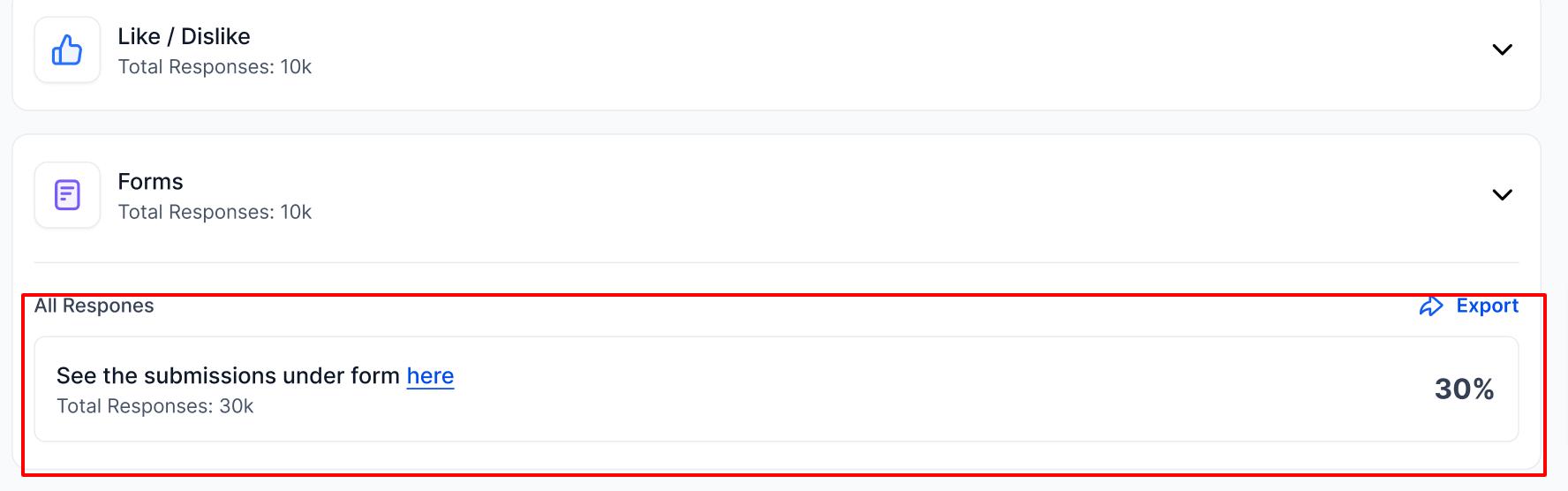
The Forms/ Surveys Element allows you to add pre-built or custom feedback forms (1-10 scoring, like/dislike, 5 stars, etc.). It helps collect and analyze responses via the Submissions tab under campaign statistics.
When to Use It:
- Collect product feedback (1-10 scale).
- Gather service reviews (5-star ratings).
- Use Like/Dislike forms for simple feedback.
- Export data for users with low ratings.
How to Use:
- Go to Email Marketing and create a new campaign.
- Add the Form Element.

- Choose the feedback type (NPS, ratings, etc.).

- Customize the form design and settings.
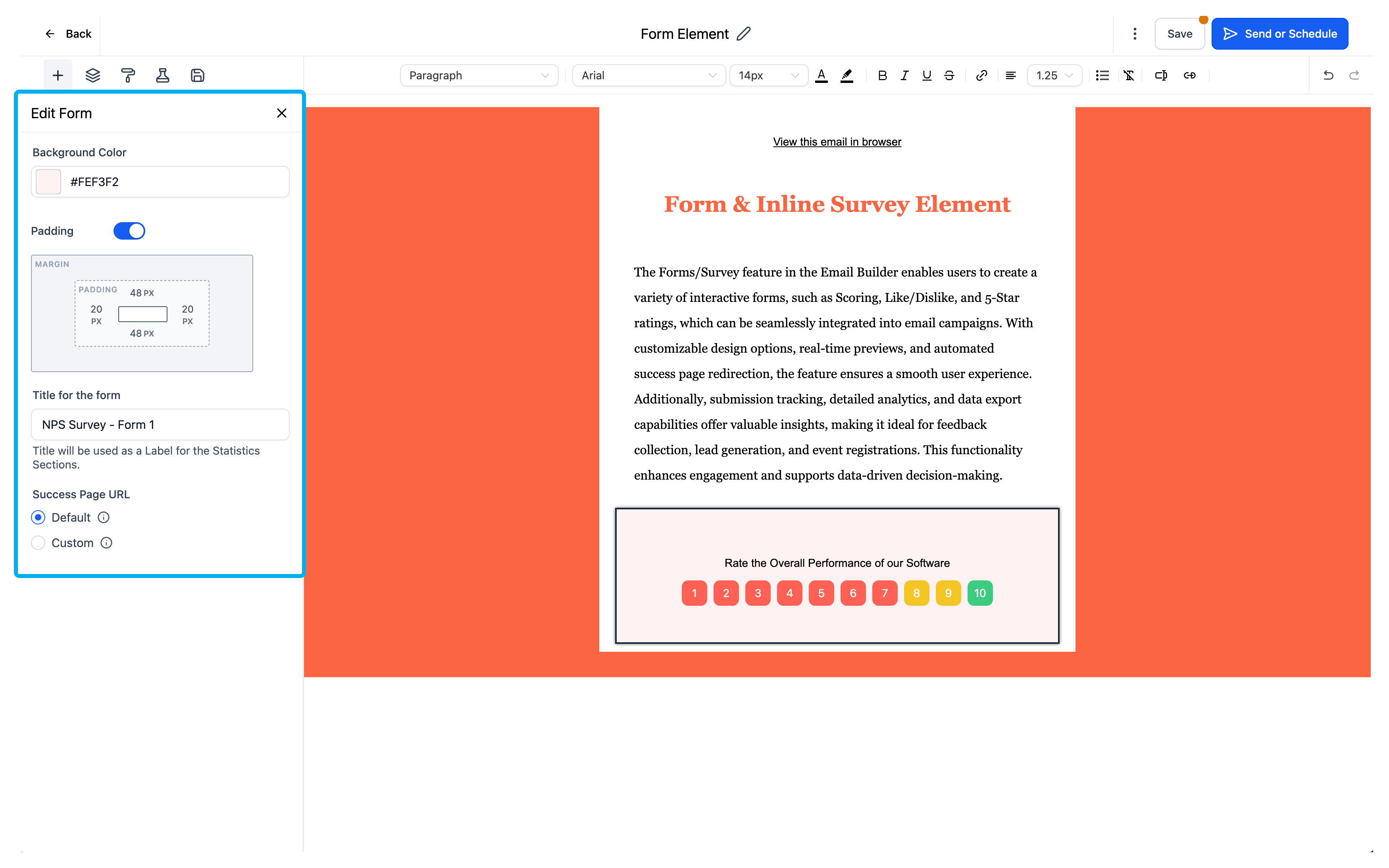
- Name the form in the Title field.
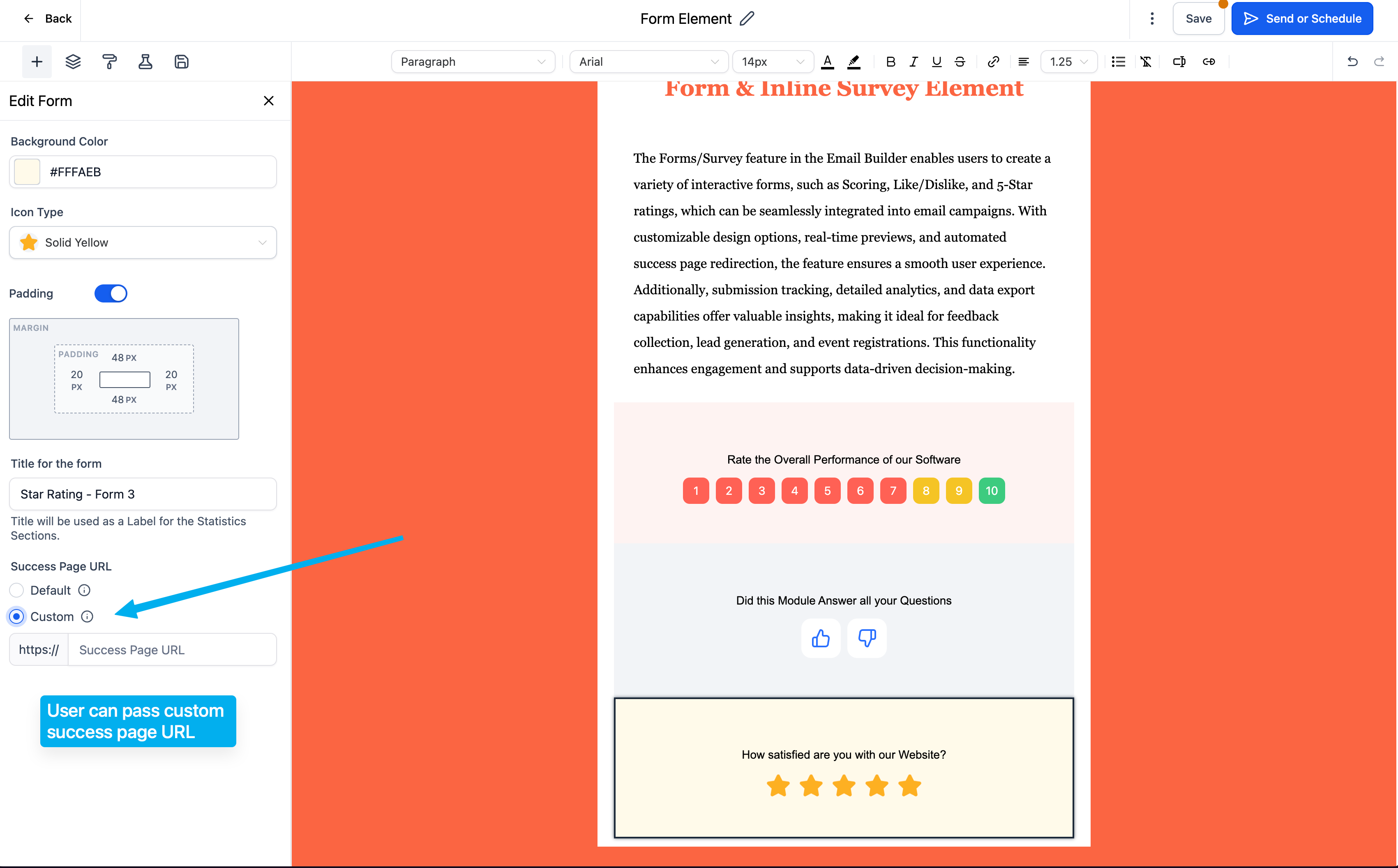
- Set a custom success page.
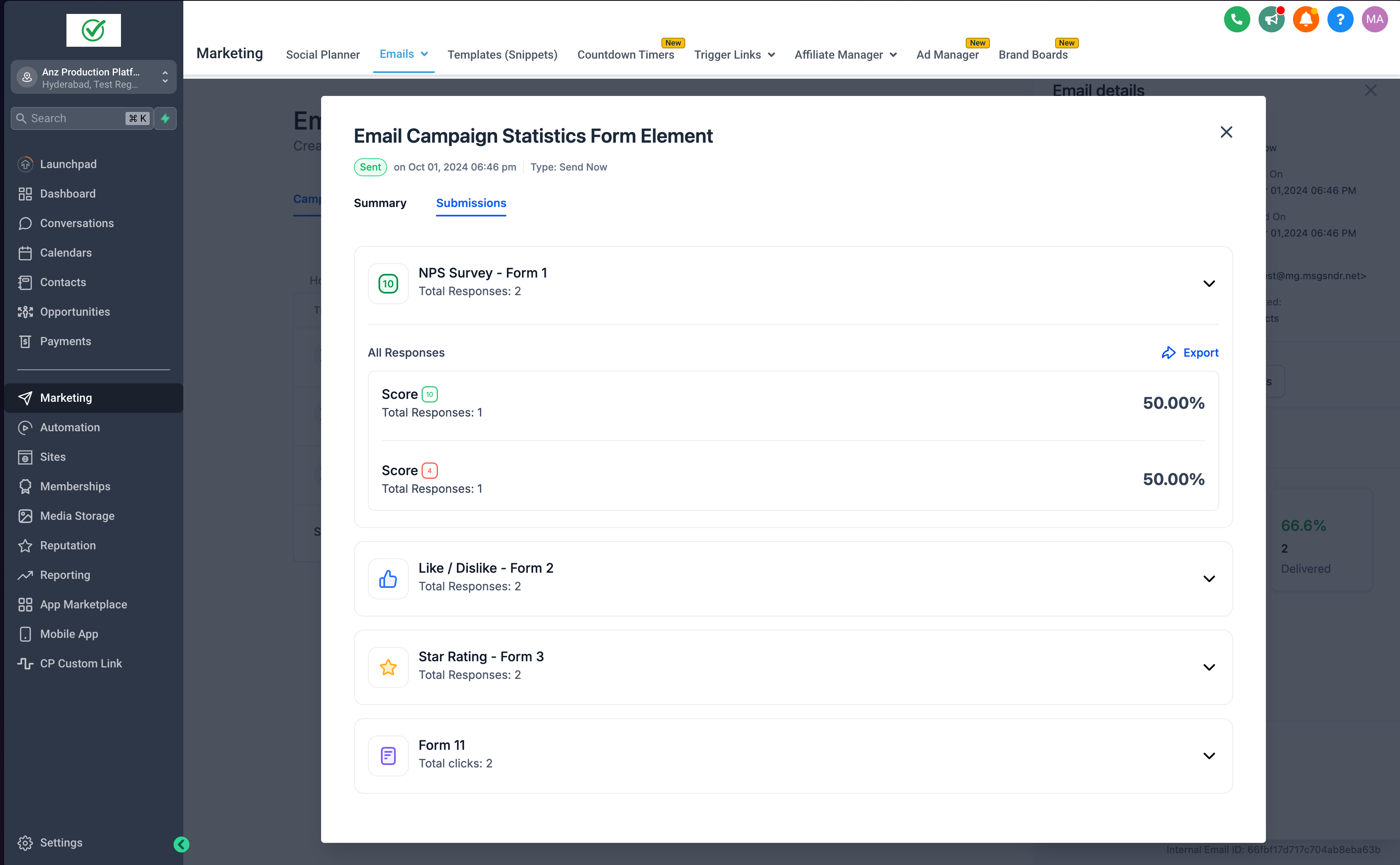
- Send your campaign and monitor responses via Campaign Statistics > Submissions.

- Export the list of respondents if needed.
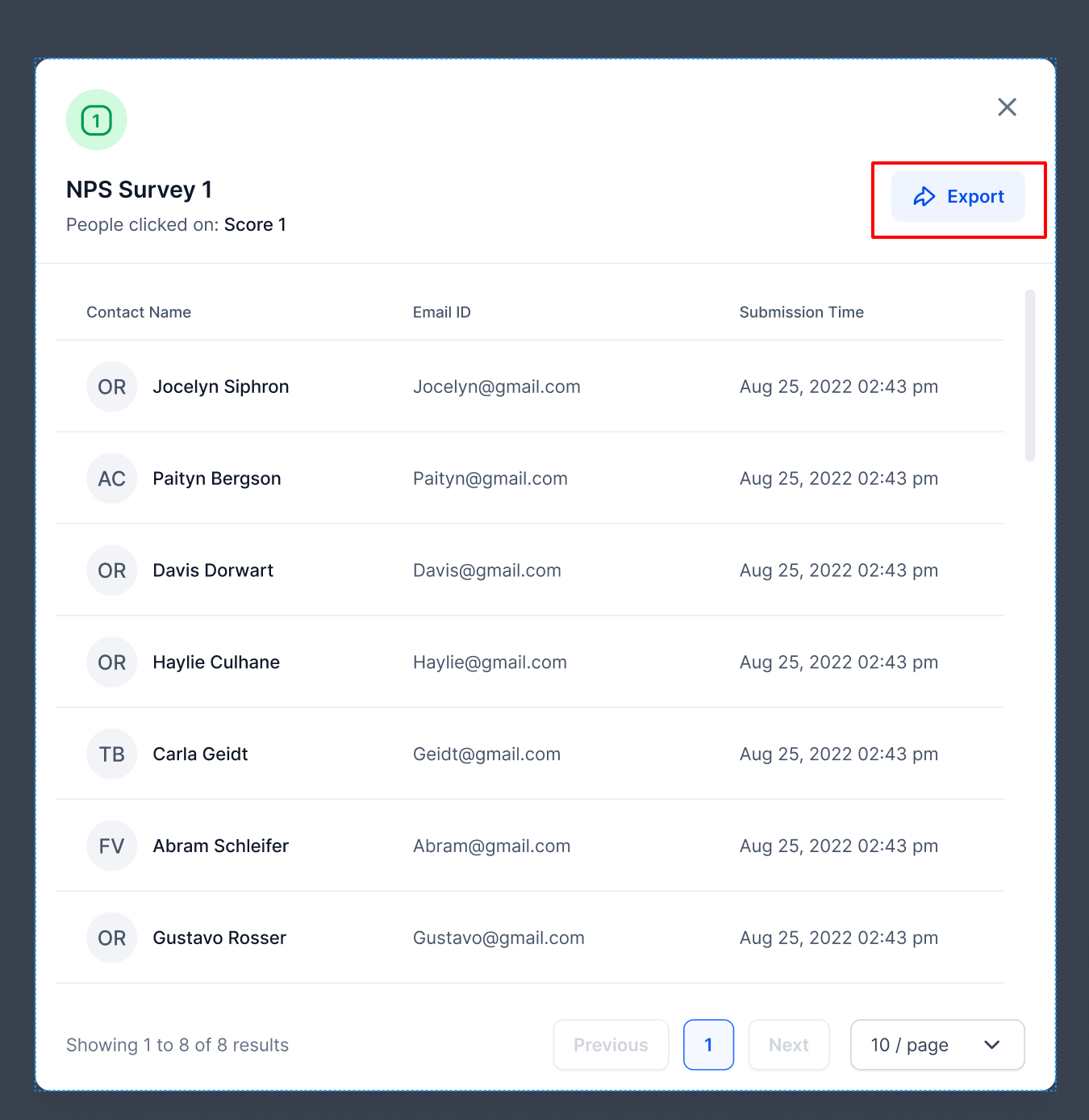
- For pre-built forms, navigate directly to the submission page.
Frequently Asked Questions
Q:Do I need a custom success URL for form responses to be tracked in email campaigns?
No. Form submissions including ratings, Like/Dislike, and scoring are tracked as soon as a contact clicks on the element inside the email.
A custom success URL is completely optional. It’s only used to control where the user is redirected after clicking (for example, to a thank-you page or external link).
Even if you don’t set a redirect, the submission will still appear in your campaign statistics under the Submissions tab. To identify each form’s response clearly, be sure to give your form a unique title during setup.
Need More Help? Contact Us
